

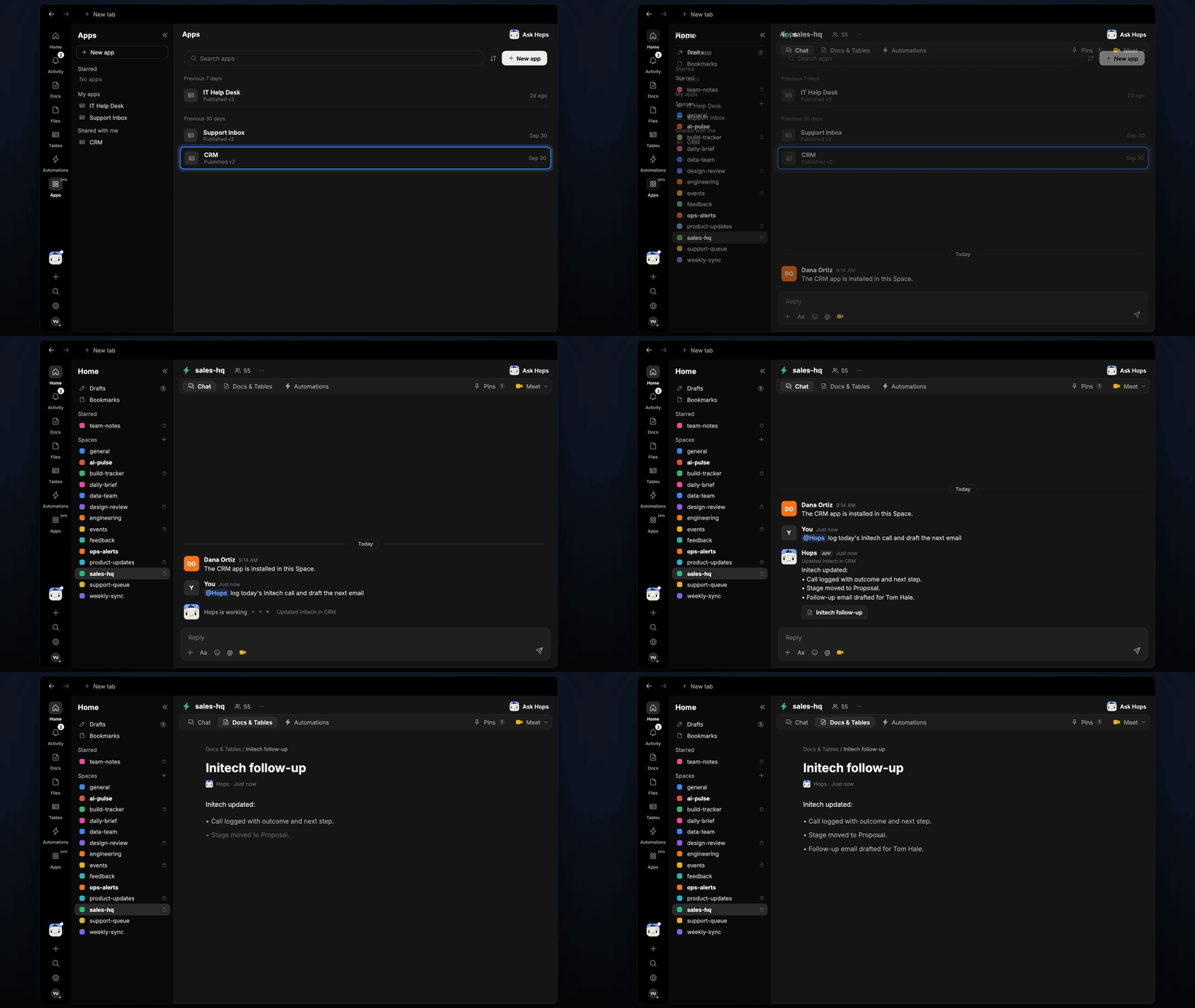
How it runs: Ask Hops. No skill or automation needed. Connect your apps and ask in any chat.
What it does
- Finds the right record. Hops locates the account and contact in the CRM app.
- Logs the outcome. The call result and next step are written to the record.
- Updates the stage. If the deal moved, Hops changes the stage and tells you.
- Drafts the next email. A short follow-up is ready in Gmail for you to review.
- Confirms every change. Hops lists what it changed so nothing happens silently.
Ask Hops
Copy a prompt into any chat with Hops, or mention@Hops in a Space.
Initech updated:
- Call logged with outcome and next step.
- Stage moved to Proposal.
- Follow-up email drafted for Tom Hale.
What you get
- An answer in chat, in the same thread, listing the CRM changes.
- A CRM update on the right record.
- An email draft in Gmail, ready to review.
- A saved Doc, when you ask for one. Say “save this as a doc” and Hops writes it to Docs in the Space.
Connections needed
Connect these apps. Each card opens Connections in the app.CRM app
Install the CRM app from Apps so Hops can read and update records.
Gmail
Holds the follow-up draft.
Set it up
1
Connect your apps
Install the CRM app from Apps and connect Gmail in Connections.See Connections.
2
Create a Space (optional)
Create a sales-hq Space for the team and pin your stage definitions in Space context.See Spaces and Space context.
3
Ask
Ask Hops in chat after each call.