

How it runs: Triggered. An automation runs when a new deal-desk request is marked for approval, and you can also ask Hops directly.
What it does
- Reads the opportunity. Hops pulls discount, terms, products and contract length from Salesforce or HubSpot.
- Checks it against policy. Each line is compared with the pricing and discount rules pinned in the Space.
- Lists every exception. For each one Hops names who must approve it and suggests a counter.
- Drafts the approval note. A short note with the trade-offs, ready to send to the approver.
- Posts to the right channel. The summary goes to the deal desk Slack channel so approvers see it at once.
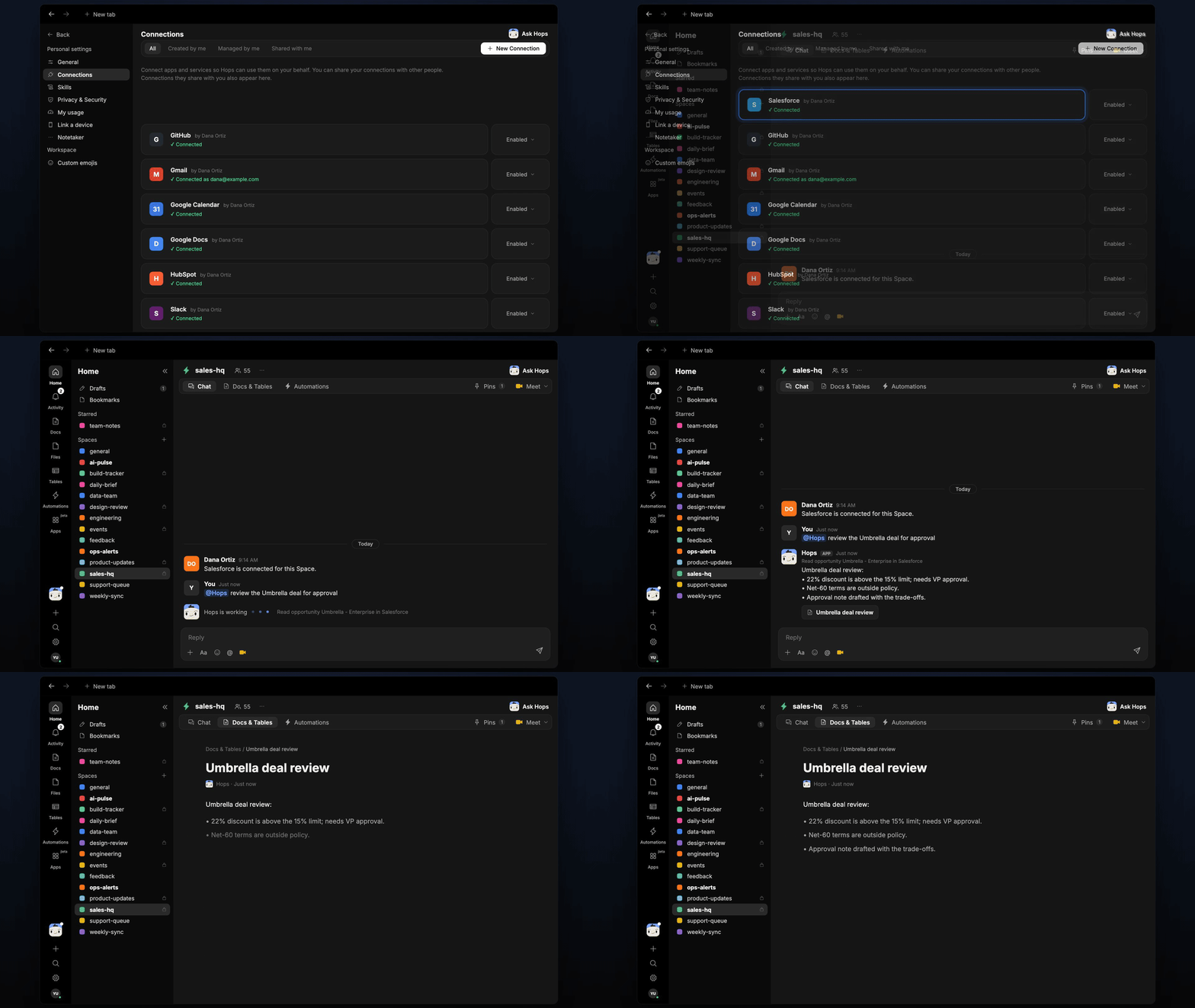
Ask Hops
Copy a prompt into any chat with Hops, or mention@Hops in a Space.
Umbrella deal review:
- 22% discount is above the 15% limit; needs VP approval.
- Net-60 terms are outside policy.
- Suggested counter: 17% with annual prepay.
- Approval note drafted with the trade-offs.
What you get
- A post when the request arrives, in the deal desk Slack channel or the Space chat, with exceptions and approvers.
- A saved Doc in Docs of the Space with the review and approval note for each deal.
- A draft approval note you can send as is or edit.
- On-demand reviews. Ask Hops about any opportunity at any time.
Connections needed
Connect these apps. Each card opens Connections in the app.Salesforce
Reads opportunities, discounts and terms (or HubSpot).
Slack
Posts the review to the deal desk channel.
Set it up
1
Connect your apps
Connect your CRM (Salesforce or HubSpot) and Slack in Connections.See Connections.
2
Pin the policy
Create a sales-hq Space and pin the pricing and discount policy in Space context.See Spaces and Space context.
3
Add the skill
4
Trigger it
Runs when a new opportunity is marked for approval. Hops posts the review to the deal desk channel and saves it in Docs.See Automation.