

How it runs: Ask Hops, with a skill so the output has the same format every time. No automation needed.
What it does
- Reads the whole context. The ticket, the customer’s history and their account details.
- Answers from your help docs and cites the article used.
- Matches your tone. Helpful, direct, no jargon, with numbered steps when needed.
- Never invents product behavior. If the docs do not cover it, Hops says so and suggests who to ask.
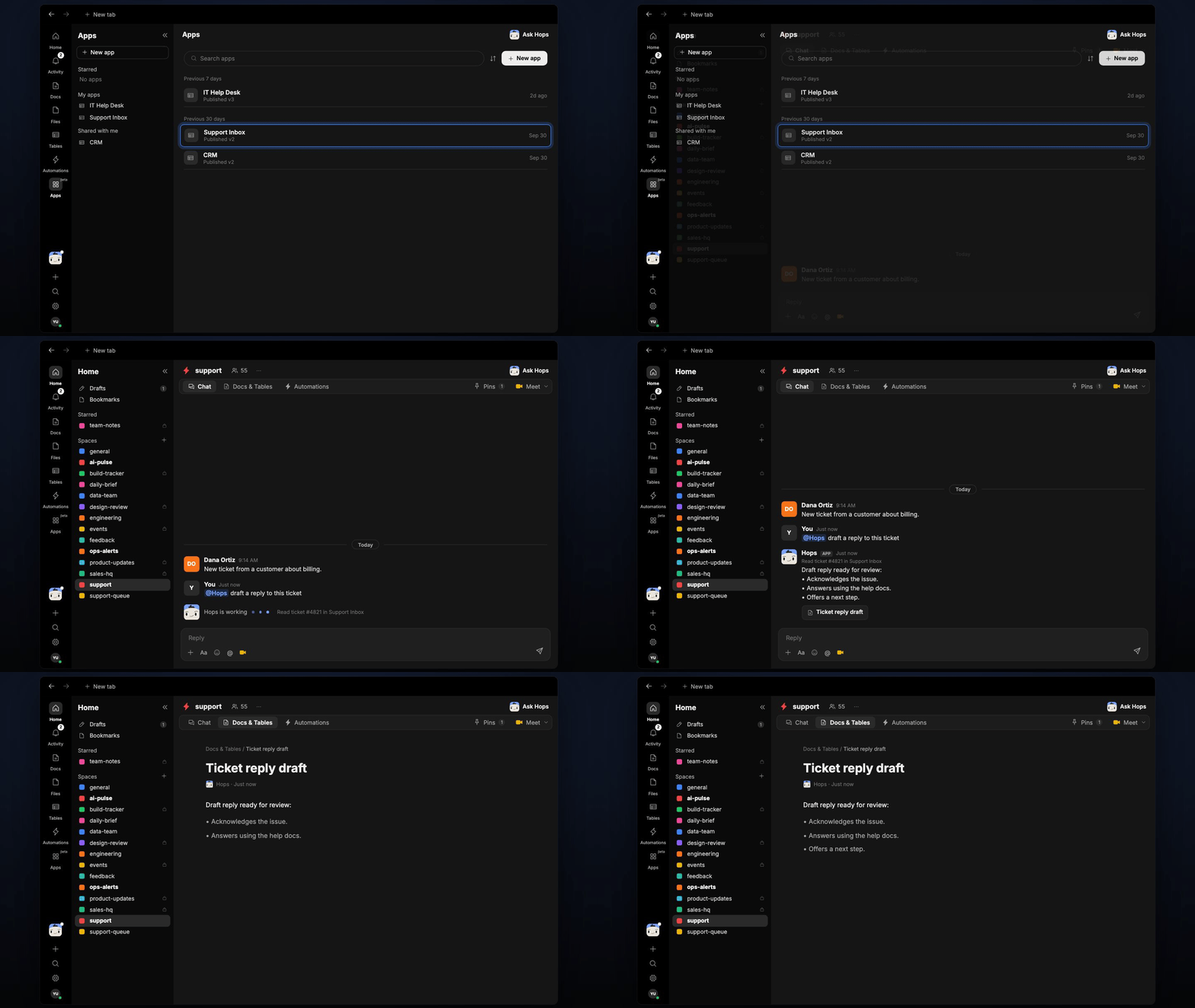
Ask Hops
Copy a prompt into any chat with Hops, or mention@Hops in a Space.
Draft reply for Acme:Hi Dana, thanks for flagging the export issue.
- Steps 1-3 from the Exports help article.
- Next step: reply if it still fails and we will escalate.
What you get
- A draft in chat, in the same thread, with the help doc cited.
- A saved Doc, when you ask for one. Say “save this as a doc” and Hops writes it to Docs in the Space.
- A reply draft in the Support Inbox, when you ask Hops to prepare it there.
Connections needed
Connect these apps. Each card opens Connections in the app.Zendesk
Tickets and sentiment (or Intercom).
Notion
Help center articles (or Confluence).
HubSpot
Deals, contacts and owners (or Salesforce).
Support Inbox
Ticket threads and customer history.
Set it up
1
Connect your apps
Connect the apps above in Connections.See Connections.
2
Pin context (optional)
Create a support Space and pin your tone guide and top help articles in Space context.See Spaces and Space context.
3
Add the skill
4
Ask
Ask Hops in chat. Mention the account or period you care about.