

How it runs: One Space per client, with its own context, skill and automations.
What it does
- Reads the SOW. Hops lists scope, deliverables, dates and assumptions from the signed SOW in Google Drive.
- Builds the onboarding checklist. Steps have owners on both sides and dates tied to the SOW timeline.
- Drafts the kickoff agenda. It uses the goals, contacts and calendar availability from Google Calendar.
- Flags anything vague. Unclear scope, missing dates or undefined deliverables are listed so you can resolve them before kickoff.
- Hands over to weekly status. Once the engagement starts, the Space keeps a weekly update running.
Ask Hops
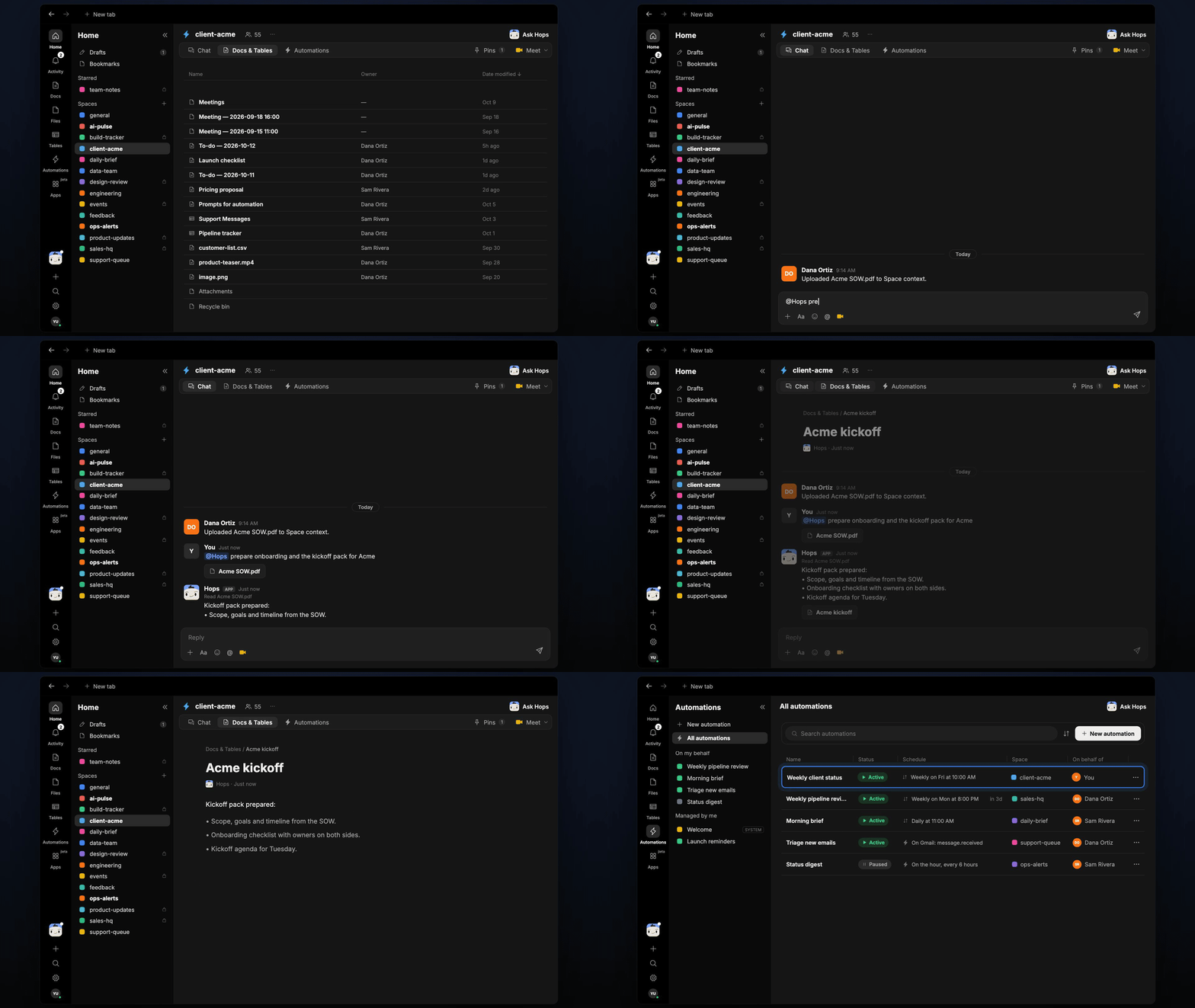
Copy a prompt into any chat with Hops, or mention@Hops in a Space.
Kickoff pack prepared from Acme SOW.pdf:
- Scope, goals and timeline from the SOW.
- Onboarding checklist with owners on both sides.
- Kickoff agenda for Tuesday.
- 2 vague items flagged in scope.
What you get
- A dedicated Space per client. The SOW, contacts and history are pinned in Space context, so everything Hops writes uses them.
- A saved Doc. The kickoff pack and agenda are saved to Docs in the Space.
- An onboarding Table. The checklist lives in Tables, with owner, due date and status for each step.
- A weekly post. Every Friday at 10:00 AM Hops posts the client status to the Space chat once the engagement starts.
Connections needed
Connect these apps. Each card opens Connections in the app.Google Drive
The signed SOW and kickoff files.
Gmail
Client threads and contacts.
Google Calendar
Kickoff timing and attendees.
Slack
Where the weekly status goes.
Set it up
1
Connect your apps
Connect Google Drive, Gmail, Google Calendar and Slack in Connections.See Connections.
2
Create a Space per client
Create a client-acme Space for each client. Pin the SOW and contacts in Space context.See Spaces and Space context.
3
Add the skill
4
Schedule it
Run it every Friday at 10:00 AM once the engagement starts. Hops posts the weekly client status and updates the onboarding Table.See Automation.