

How it runs: One Space per client, with its own context, skill and automations.
What it does
- Updates each workstream. Hops reads tasks in Asana or Jira and sets every workstream to on track, at risk or behind, with the reason.
- Writes the status in under 10 lines. Progress, risks and next week, in plain language a client can read.
- Keeps the dashboard current. Workstream status, dates and owners are refreshed in a table in the client Space.
- Drafts the client email. The status is turned into an email in Gmail for you to review and send. Hops never sends it for you.
- Notes recovery plans. When a workstream is behind, the status includes what the team is doing about it.
Ask Hops
Copy a prompt into any chat with Hops, or mention@Hops in a Space.
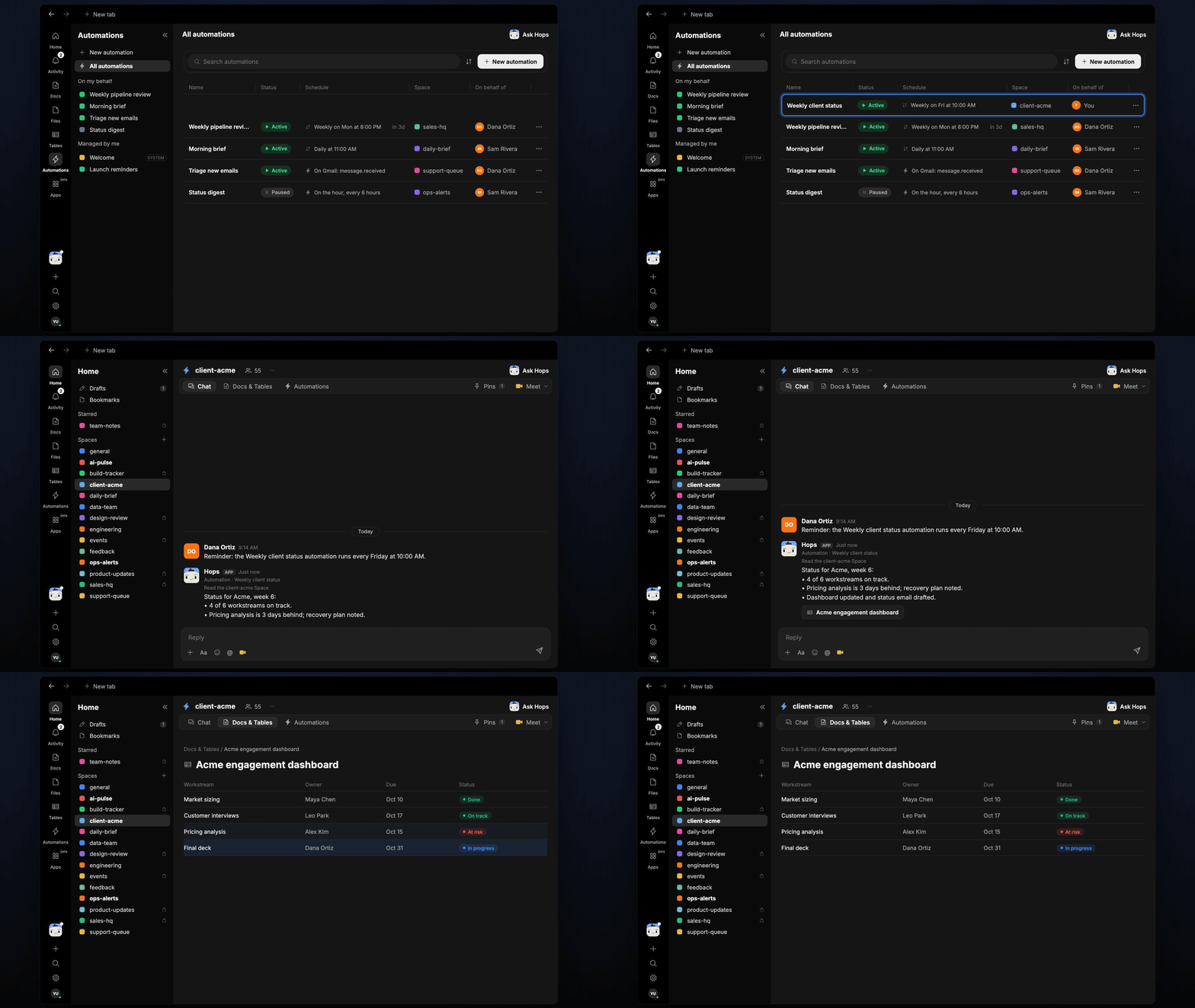
Status for Acme, week 6:
- 4 of 6 workstreams on track.
- Pricing analysis is 3 days behind; recovery plan noted.
- Dashboard updated and status email drafted.
What you get
- A dedicated Space per client. Each Space holds the workstream plan, contacts and history, so the status is always written with the right context.
- A Friday post. Every Friday at 10:00 AM Hops posts the weekly status to the client Space chat.
- A saved Doc. Each week adds a dated status to Docs.
- An updated Table. The engagement dashboard lives in Tables, with one row per workstream.
- An email draft. The client status email, ready to review.
Connections needed
Connect these apps. Each card opens Connections in the app.Gmail
Client threads and the status email draft.
Asana
Workstream tasks and dates (or Jira).
Slack
Team updates and the Friday post.
Set it up
1
Connect your apps
Connect Gmail, Asana or Jira, and Slack in Connections.See Connections.
2
Create a Space per client
Create a client-acme Space for each client. Pin the workstream plan and contacts in Space context.See Spaces and Space context.
3
Add the skill
4
Schedule it
Run it every Friday at 10:00 AM in each client Space. Hops posts the status, saves a dated Doc, updates the dashboard Table and drafts the email.See Automation.