

How it runs: Ask Hops. No skill or automation needed. Connect your apps and ask in any chat.
What it does
- Searches the brand folder first. Hops looks in your approved brand folders in Google Drive for logos, images, templates and decks.
- Returns the newest approved version. Every result comes with a link and the date it was last updated.
- Warns about archived files. If someone asks for an old version or the file sits in an Archive folder, Hops says so and points to the current one.
- Matches by what you describe. Ask for “the dark logo” or “the event slide template” and Hops picks the right file and format, such as SVG or PNG.
- Respects access. Hops only reads what your Google Drive connection can see.
Ask Hops
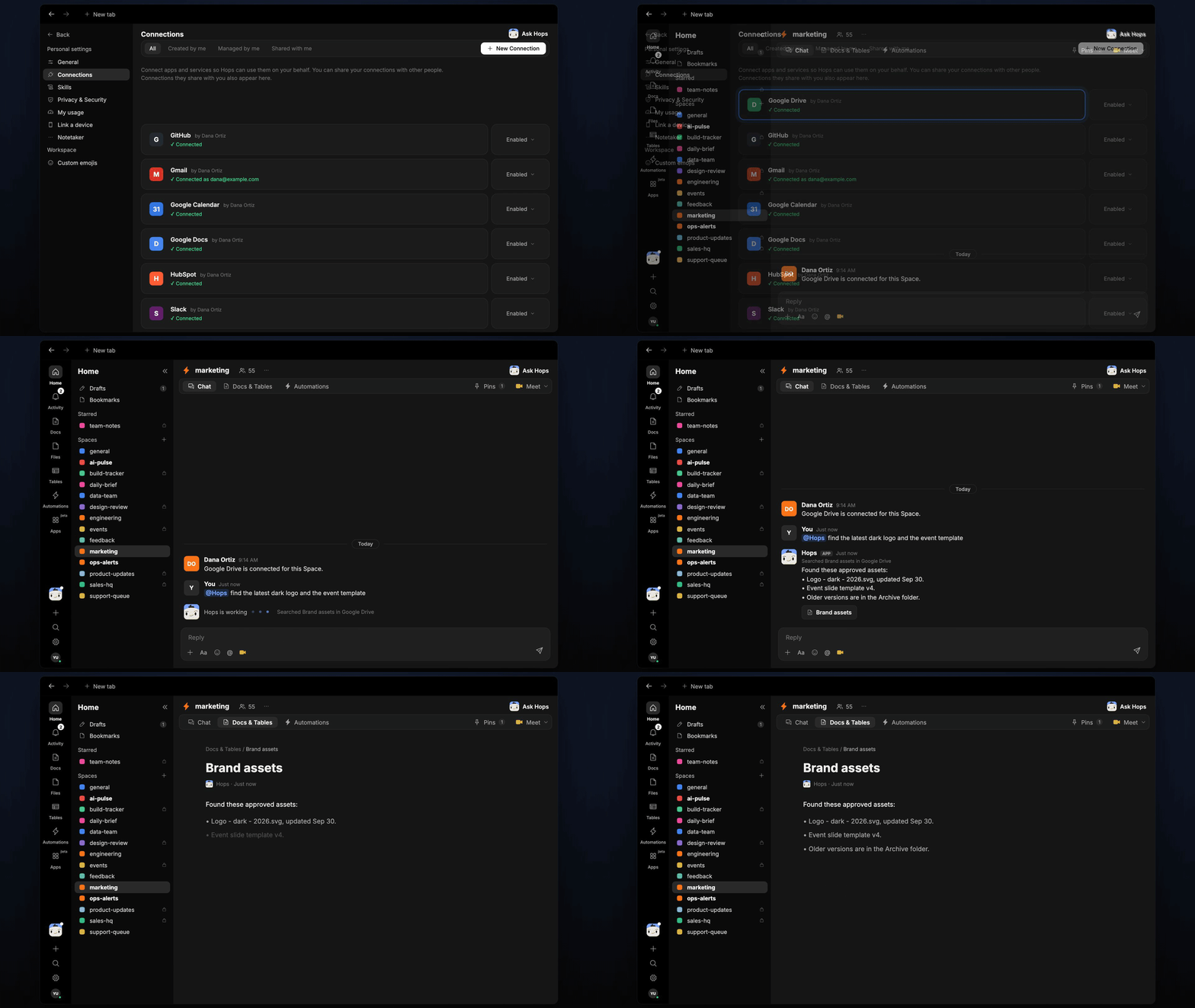
Copy a prompt into any chat with Hops, or mention@Hops in a Space.
Found these approved assets:
- Logo - dark - 2026.svg, updated Sep 30.
- Event slide template v4, updated Aug 14.
- Older versions are in the Archive folder. Do not use them.
What you get
- An answer in chat, in the same thread, with a link and last updated date for every asset.
- A saved Doc, when you ask for one. Say “save this as a doc” and Hops writes an asset list to Docs in the Space.
Connections needed
Connect these apps. Each card opens Connections in the app.Google Drive
Brand folders, logos, templates and decks.
Slack
Ask for assets where your team already chats.
Set it up
1
Connect your apps
Connect Google Drive and Slack in Connections.See Connections.
2
Pin the brand folder (optional)
Create a marketing Space and pin the brand folder link in Space context, so Hops searches there first.See Spaces and Space context.
3
Ask
Ask Hops for an asset in chat. That’s it.