

How it runs: One Space per hire, with its own context, skill and automations.
What it does
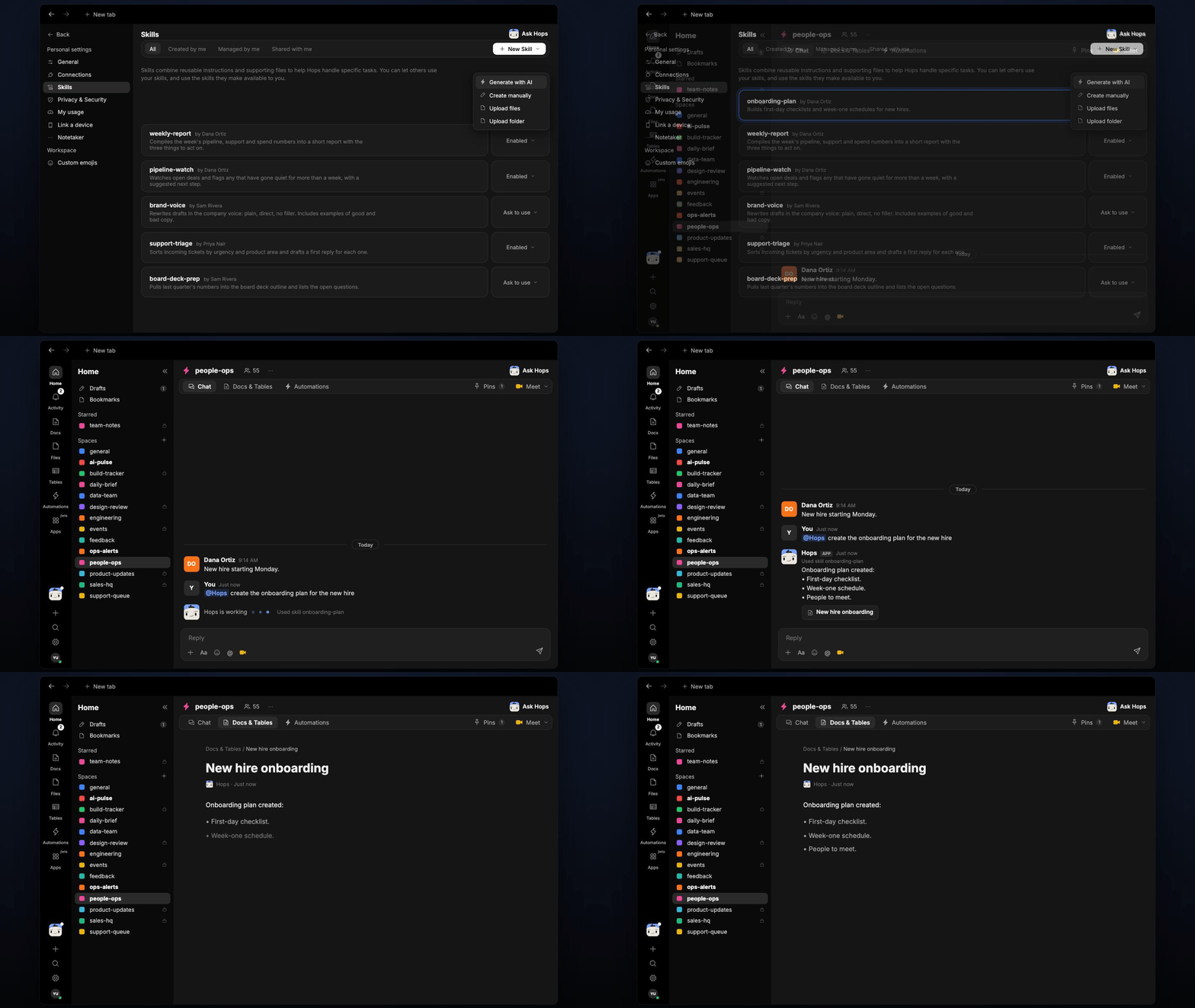
- Builds the onboarding plan. Hops creates a first-day checklist, week-one schedule and list of people to meet from the plan and role brief in Space context.
- Answers first-week questions. Questions about tasks, tools and people are answered only from the docs in the Space, with the doc cited.
- Admits gaps. If something is not in the Space, Hops says so and routes the question to the HR partner.
- Tracks progress. On day 3, Hops compares completed and open onboarding items and tags the HR partner.
- Keeps hires consistent. Every Space starts from the same plan, so each new hire gets the same experience.
Ask Hops
Copy a prompt into any chat with Hops, or mention@Hops in a Space.
Onboarding plan created:
- First-day checklist.
- Week-one schedule.
- People to meet.
What you get
- A Space per new hire, with its own context, Docs and Tables, and an invite-only member list.
- A saved plan. The onboarding plan is saved to Docs, and open items are tracked in Tables in the Space.
- A day-3 check-in post in the Space chat listing completed vs open items, tagging the HR partner.
- Answers in chat for the new hire, with the doc cited.
Connections needed
Connect these apps. Each card opens Connections in the app.Rippling
Start date, role and manager (or Workday or your HR tool).
Google Drive
Onboarding docs (or Notion).
Slack
Where the new hire and HR partner chat with Hops.
Set it up
1
Connect your apps
Connect your HR tool, Google Drive or Notion, and Slack in Connections.See Connections.
2
Create a Space per hire
Create one invite-only Space per new hire. Pin the onboarding plan, role brief and org info in Space context.See Spaces and Space context.
3
Add the skill
4
Schedule it
On day 3, Hops posts a checklist of onboarding items completed vs open to the Space, tagging the HR partner, and updates the tracking Table.See Automation.