

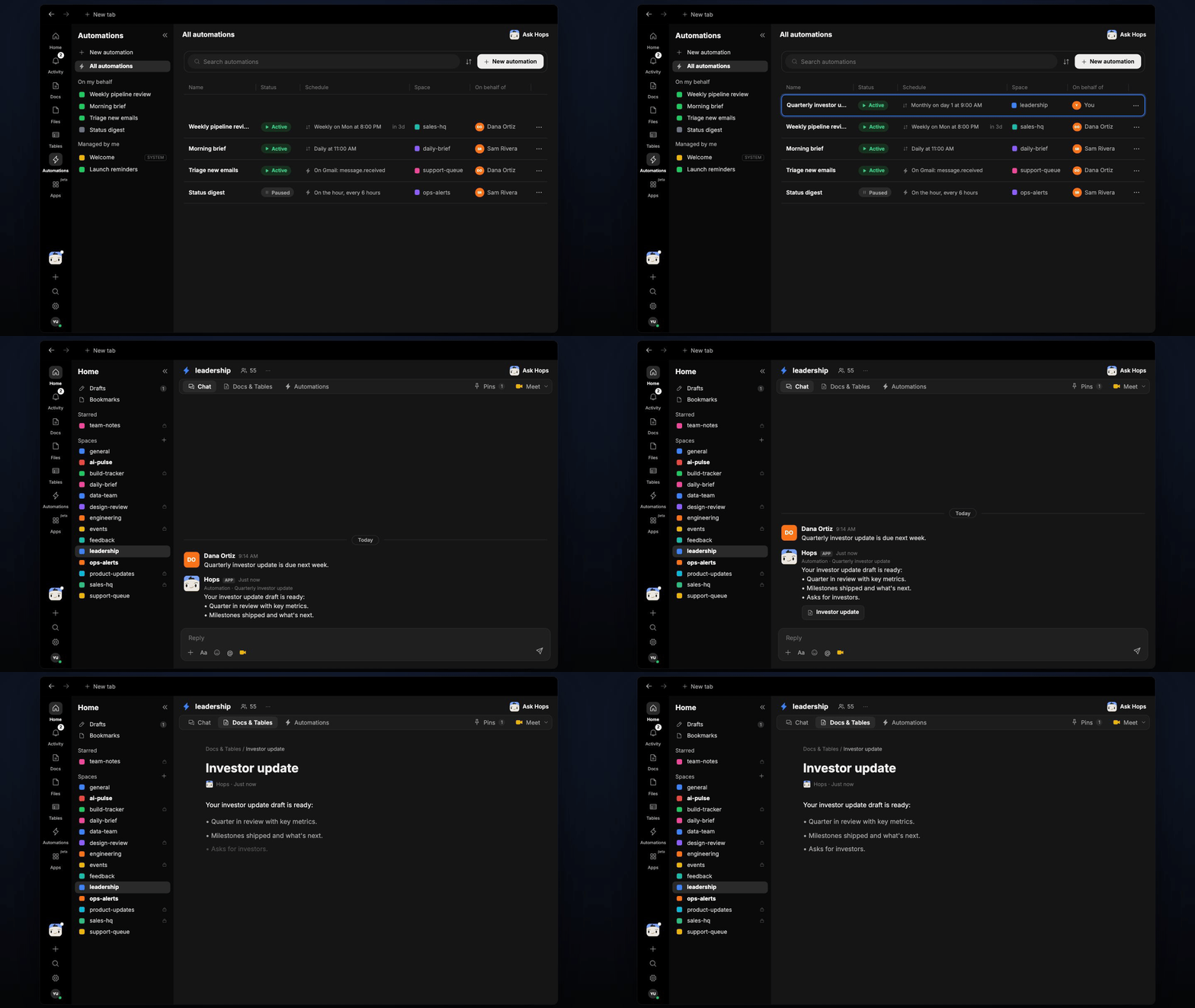
How it runs: Scheduled. An automation runs on the first day of each quarter, posts a draft update and saves a dated Doc. You can also ask Hops any time.
What it does
- Pulls the numbers from your tools. Hops reads your finance tool and product analytics for headline metrics and never invents a number.
- Finds the milestones. It scans project threads and Drive for what shipped and what slipped this quarter.
- Writes in your voice. Headline metrics, wins, challenges and asks, in under 800 words, matching the template pinned in the Space.
- Checks recent investor mail. Hops reads Gmail for open questions investors asked so the update can answer them.
- Marks gaps clearly. If a metric can’t be sourced, the draft says so instead of filling it in.
Ask Hops
Copy a prompt into any chat with Hops, or mention@Hops in a Space.
Your investor update draft is ready:
- Quarter in review: ARR $4.9M, up 11%; net retention 118%.
- Milestones shipped: mobile release, Acme enterprise rollout.
- Challenges: sales cycle for Globex-sized deals is 20 days longer.
- Asks: two intros to logistics buyers.
What you get
- A draft in the Space chat on the first day of each quarter, so you can review before sending.
- A dated Doc saved to Docs in the Space, one per quarter, so past updates stay easy to compare.
- On-demand drafts. Ask Hops any time, for example for a mid-quarter note.
Connections needed
Connect the tools that hold your numbers. Each card opens Connections in the app.Your finance tool
Revenue, burn and cash metrics.
Your product analytics
Usage and growth metrics.
Gmail
Investor questions and past updates.
Google Drive
Update templates and milestone docs.
Set it up
1
Connect your apps
Connect the apps above in Connections.See Connections.
2
Create the Space
Create a Founders Space. Pin the investor-update template and the list of quarterly metrics in Space context.See Spaces and Space context.
3
Add the skill
4
Schedule it
Run it on the first day of each quarter. Hops posts the draft to the Founders Space chat and saves a dated Doc to Docs.See Automation.