

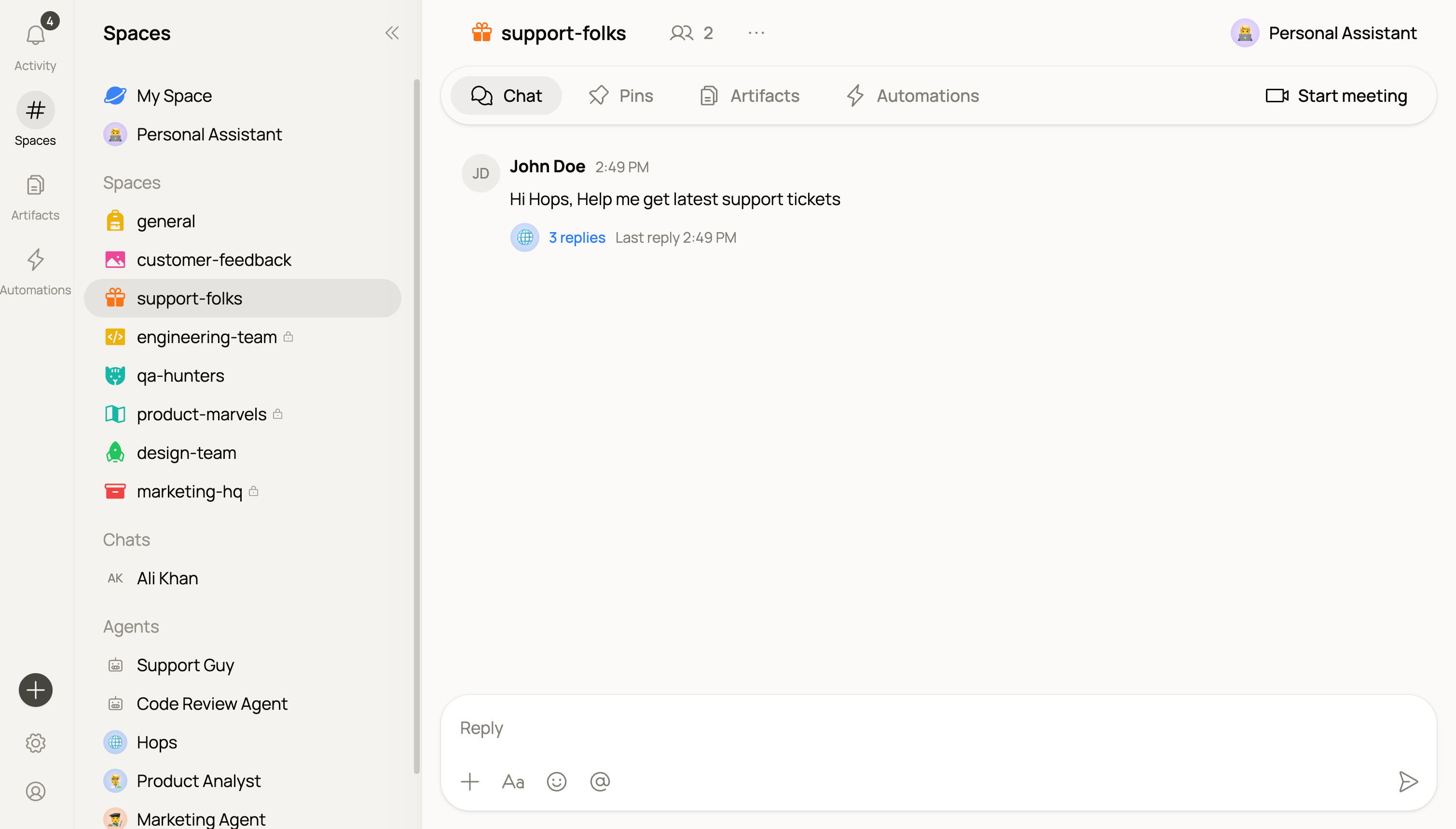
How Spaces work
One Space, one shared context. Everything in a Space — decisions, drafts, threads, docs — contributes to the shared context Hops draws from. People and Hops work side by side. Tag@Hops in a thread. If your workspace has installed skills, Hops uses the right skill automatically when the request matches, and shows attribution like Hops · Pipeline watch on the response.
Spaces are scoped. Hops working in one Space doesn’t automatically carry that context into another. You control what each Space contains and who can see it.
Space visibility
Every Space is either public or private inside your workspace. You pick when you create it and can change it later.Private Spaces are hidden from search for people who aren’t invited. Hops scoped to a private Space only draws context from it.
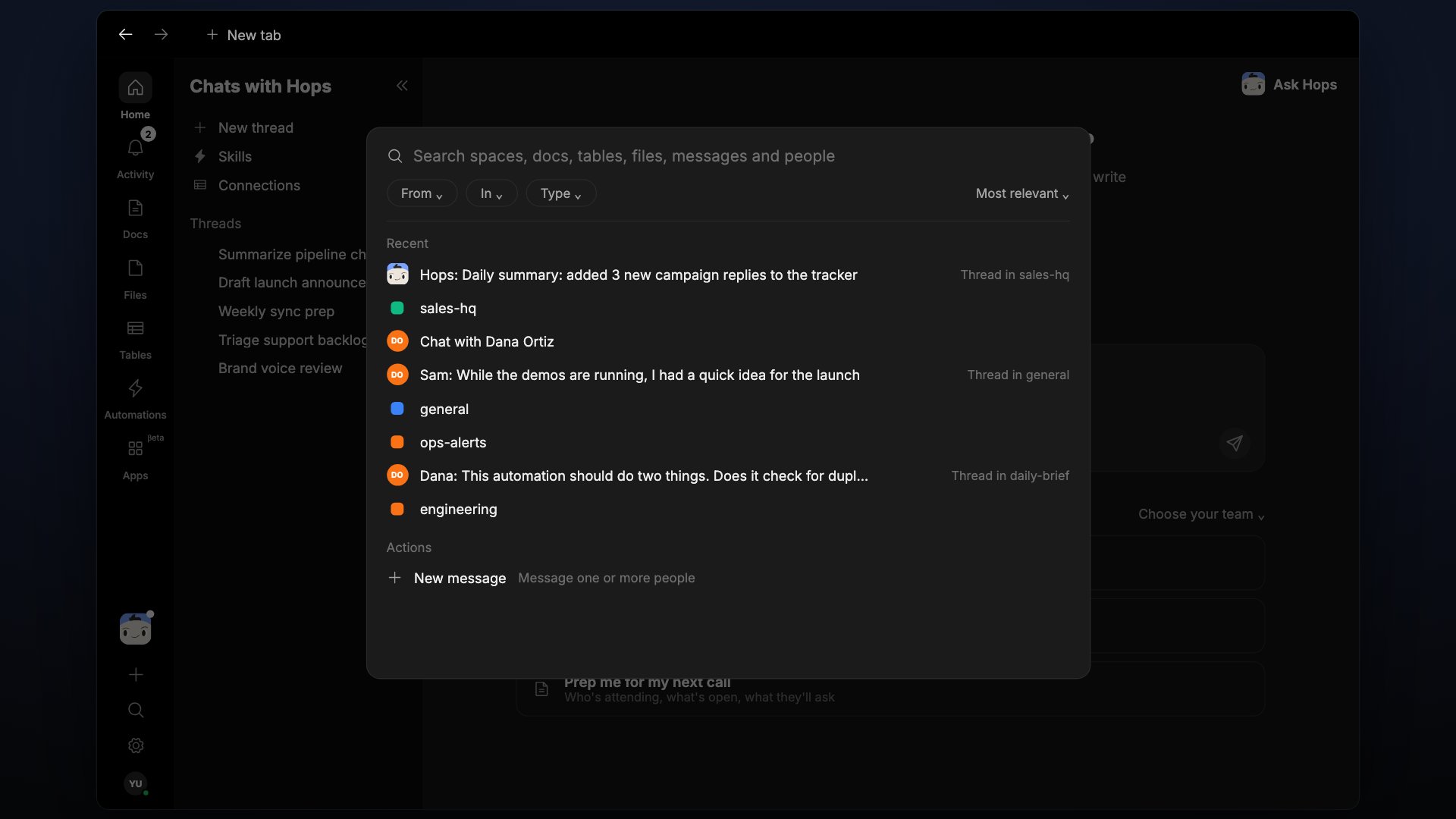
Search across docs, files, tables and messages.
Work with Hops in a thread
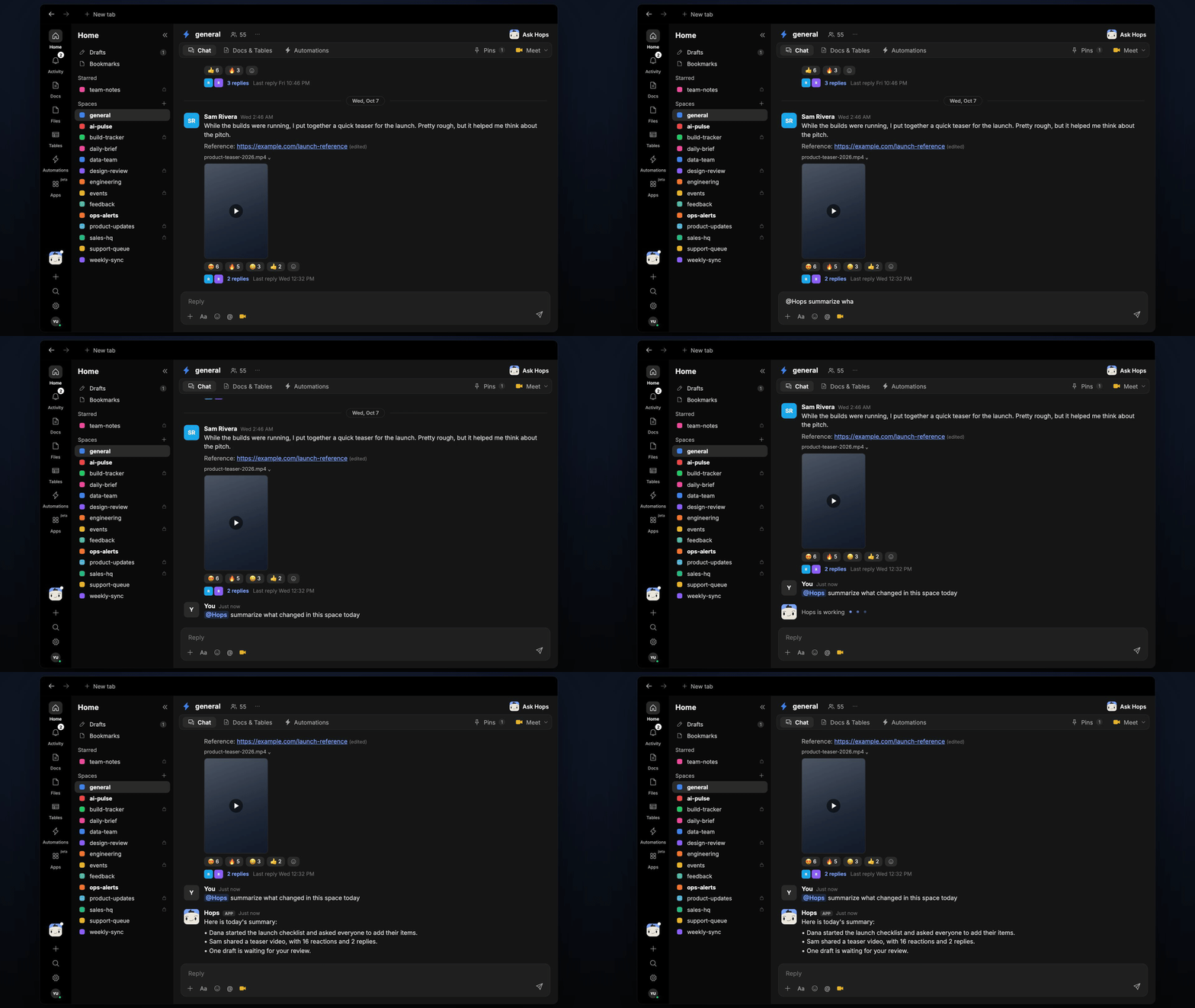
Every Space has Hops by default. Tag@Hops in a thread and it responds from the Space’s shared context. If a matching skill is installed, Hops uses it automatically and attributes the response like Hops · Pipeline watch.
Create a Space
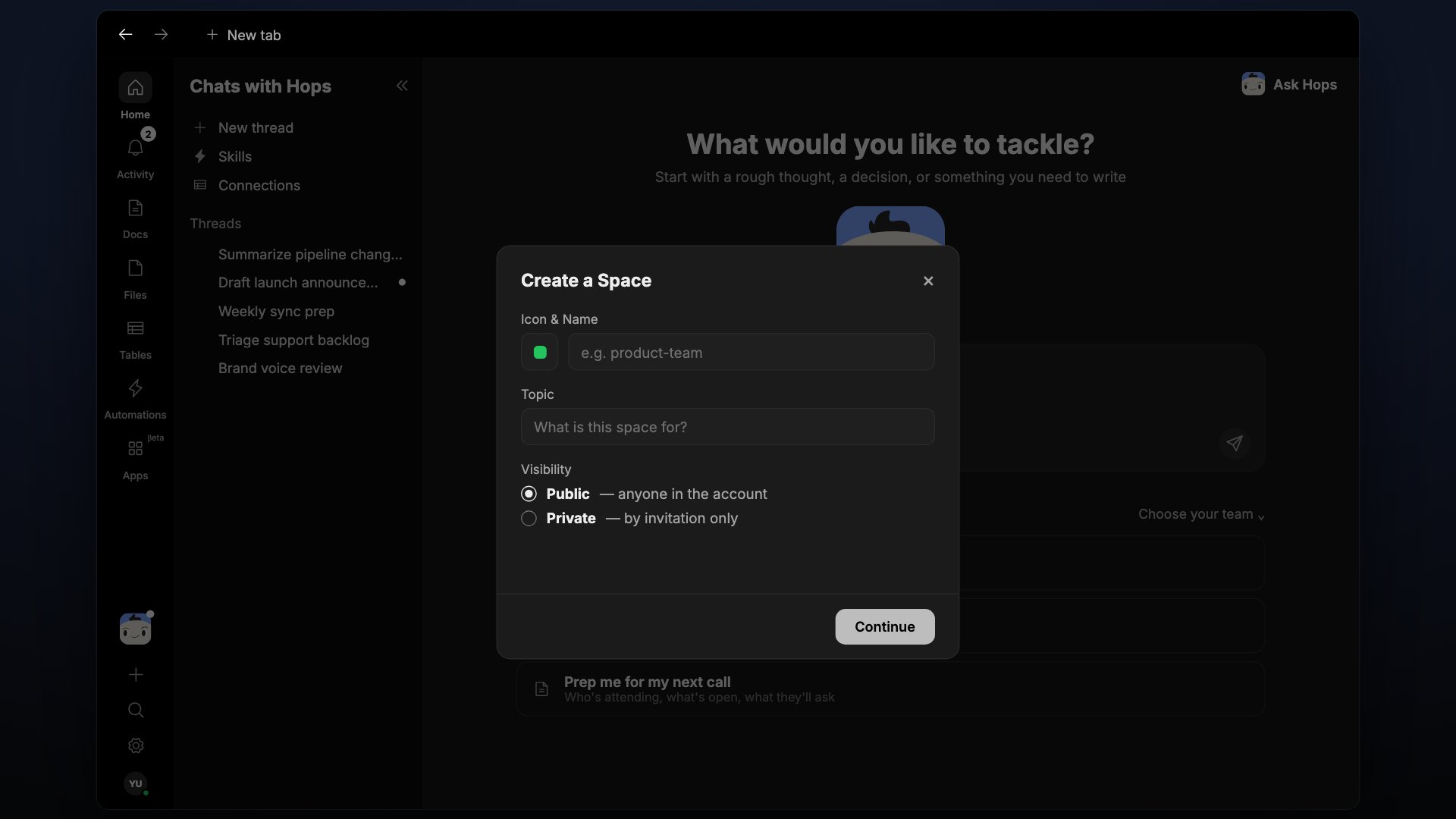
1
Click the + button
At the bottom of the left sidebar, click + and select Space.
2
Name your Space
In Icon & Name, pick an icon and give the Space a clear, specific name. Optionally add a Topic.Good examples:
Product launch Q3, Acme Corp account, Marketing team.3
Choose visibility and continue
Select Public (anyone in the account) or Private (by invitation only), then click Continue.
@Hops to get to work.
Extend Hops with skills
Every Space has@Hops by default. To give Hops role-specific behavior — a Legal reviewer, a Researcher, an SDR — install a skill. There is only one agent: Hops.
1
Open Skills
From the left sidebar, open Home, then choose Skills in the sidebar.
2
Install what the Space needs
Pick a skill for yourself, or (as an admin) install it for the whole workspace so every Space’s Hops can use it.
3
Tag Hops in chat
Tag
@Hops in the Space. When the request matches an installed skill, Hops uses it and shows attribution on the response.When to create a new Space
Create a Space for a distinct project, team, or ongoing workflow:What’s inside a Space
Chat
Threaded conversations with your team and Hops. Also where pins and meetings live.
Space Context
A standing brief Hops reads before responding.
Automation
Scheduled tasks that run on their own.
Members
People and Hops in the Space, and their roles.
Common Space setups
Not sure how to structure your first few Spaces? Start from a proven pattern.Marketing
Campaign launches, content repurposing, and brand copywriting in one room.
Sales
Pre-call prep, post-call follow-ups, and clean deal handoffs.
Legal
Contract summaries, NDA prep, and compliance Q&A with a Legal skill for Hops.