

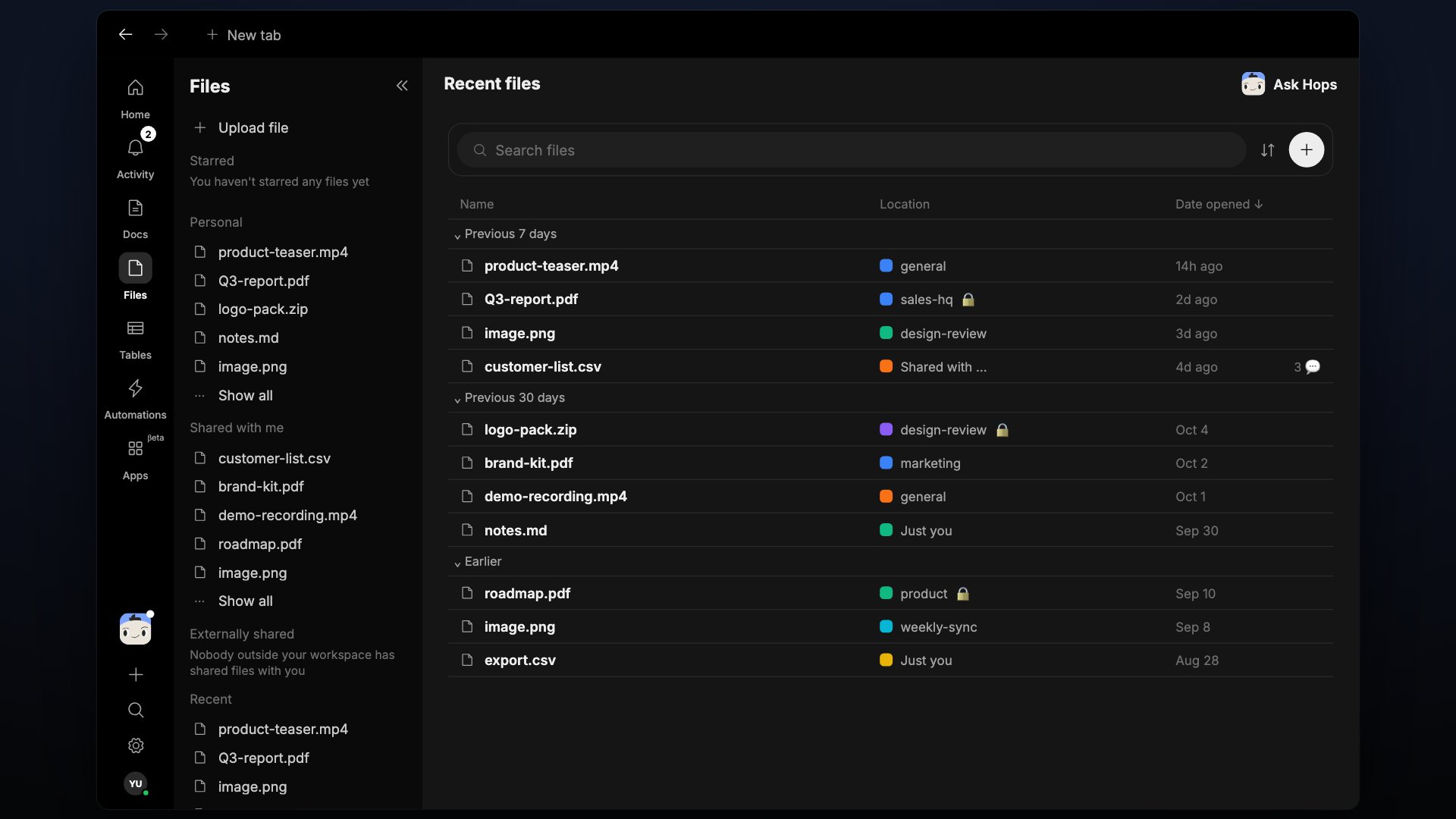
Every file uploaded across your Spaces, in one browseable list.
The Files view
Files are grouped in five sections:- Starred — files you’ve marked as favorites.
- Personal — files in your personal space.
- Shared with me — files someone else has shared with you.
- Externally shared — files shared with people outside your workspace.
- Recent — files you’ve opened most recently.
Upload a file
- Click Upload file at the top of the Files page to pick a file from your device.
- Drag files into any chat composer or doc — they upload to that Space and appear here too.
- Files Hops generates (reports, exports, screenshots) automatically show up in this list.
What Hops does with your files
- Previews. Images render inline and can be downloaded individually or in bulk.
- Attachments in threads. Every file keeps a link back to the message or automation run it came from.
- Hops access. Hops can read files attached to that Space’s threads, docs, and automation runs.