

How chat works
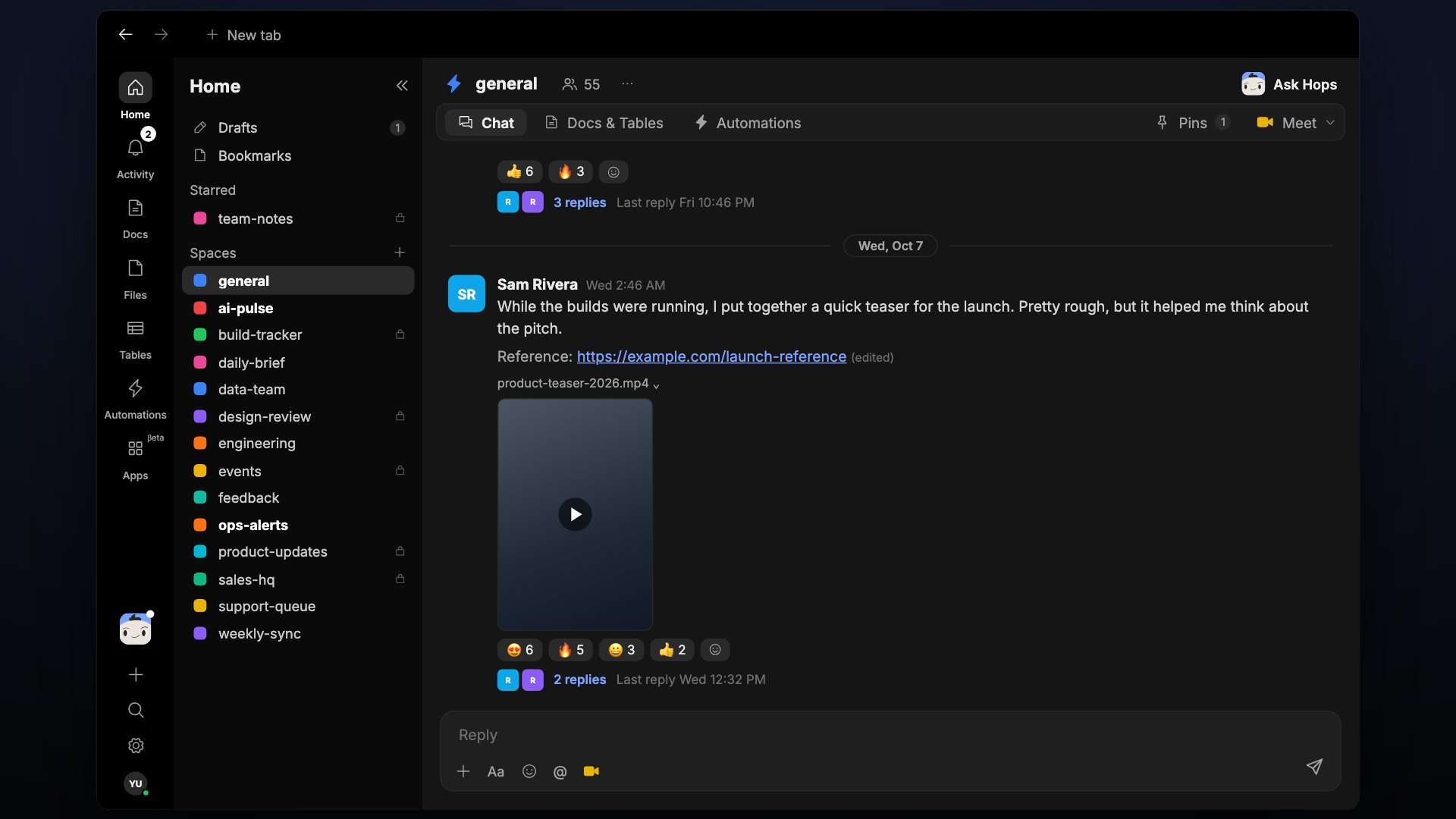
Start a thread. Write a message in the Space. Teammates reply, and Hops can be brought into the conversation with@Hops.
Tag Hops. Type @Hops anywhere in a message. Hops responds from the context in this Space.
Skills shape the answer. If an installed skill matches the request, Hops uses it automatically and attributes the response like Hops · Pipeline watch so it’s clear which skill ran.
Hops shows its work. Every response shows what it used and what it did. Expand any response to see the full trace.
Reactions, replies, and pins
- React to any message with an emoji.
- Reply to a specific message to keep context tight.
- Pin a message with the pin icon on hover to make it easy to find later.
Pins
Pins flag an important message in a Space so it’s easy to find. Hops already reads every message in the Space, so pinning doesn’t change what it can see — pins are for your team, a quick way to surface a key decision.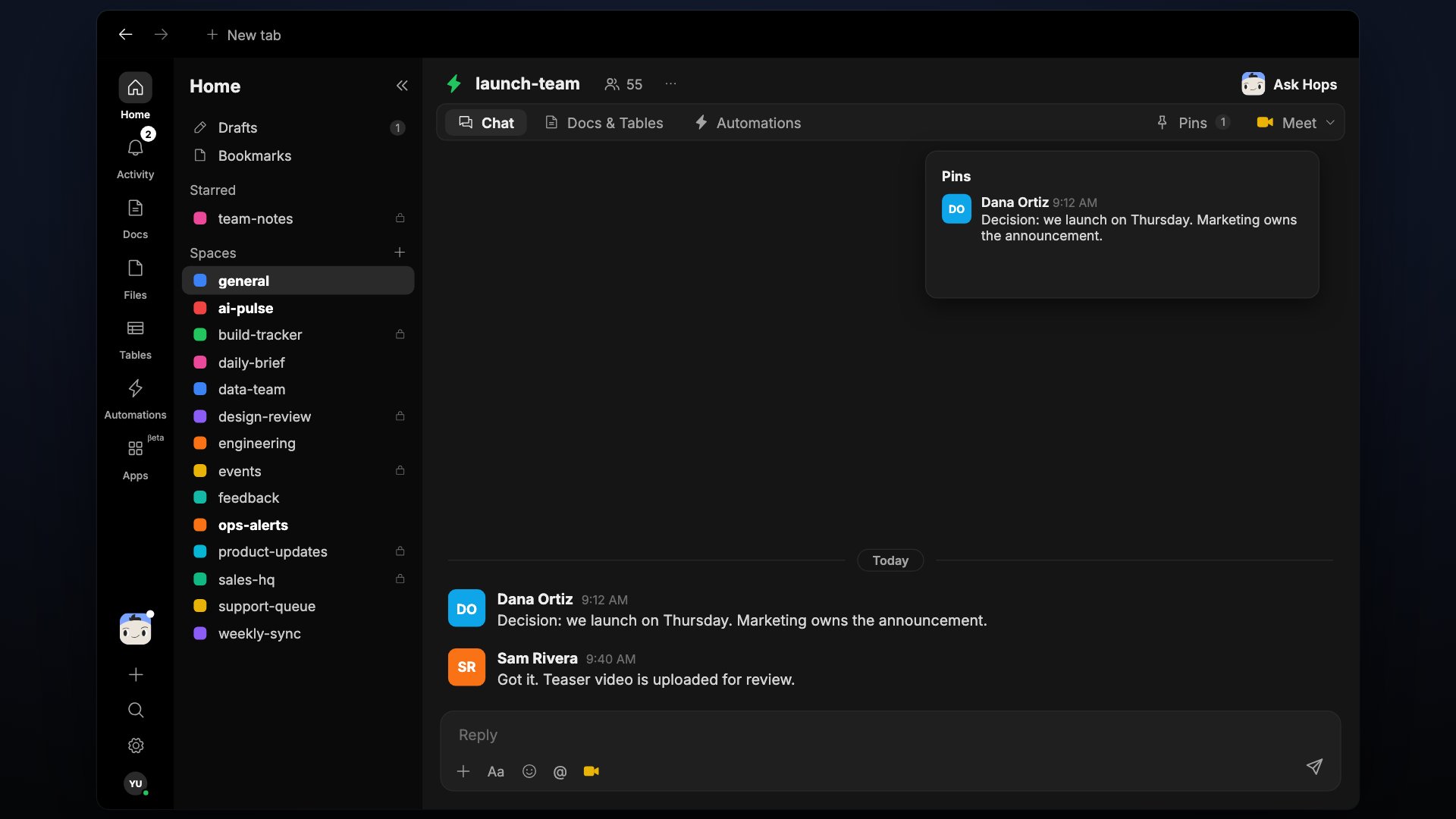
Meetings
When a thread needs a call, create one from the Space and drop the link into chat. Hops supports Google Meet and Zoom. Before you start, connect at least one provider from Settings → Connections:
Start a meeting in one of two ways:
- From the tab bar — the meeting control at the right end of the tab bar posts a new message with the join link.
- From the composer — the meeting icon in the composer inserts a link into the message you’re already writing so you can add an agenda first.
Meetings are a shared-Space feature. The controls don’t appear in My Space.
Schedule from a chat
Any useful Hops output (a summary, a report, a check-in) can be scheduled to repeat right from the conversation. See Automation.Tips
Chat history is part of the Space’s shared context. Hops draws from it when you ask questions, not just when it’s directly tagged.