

How it runs: Ask Hops, with a skill so the output has the same format every time. No automation needed.
What it does
- Starts from your template. Hops uses the mutual-NDA template in Google Drive or SharePoint, never a generic one.
- Fills the deal details. Counterparty legal name, effective date, governing law (per playbook) and purpose.
- Leaves the clauses alone. Substantive clauses are not edited; any requested change is flagged for legal review.
- Lists what it assumed. Missing details are called out so you can confirm before sending.
- Ready for signature. The draft can go to DocuSign or your e-signature tool once approved.
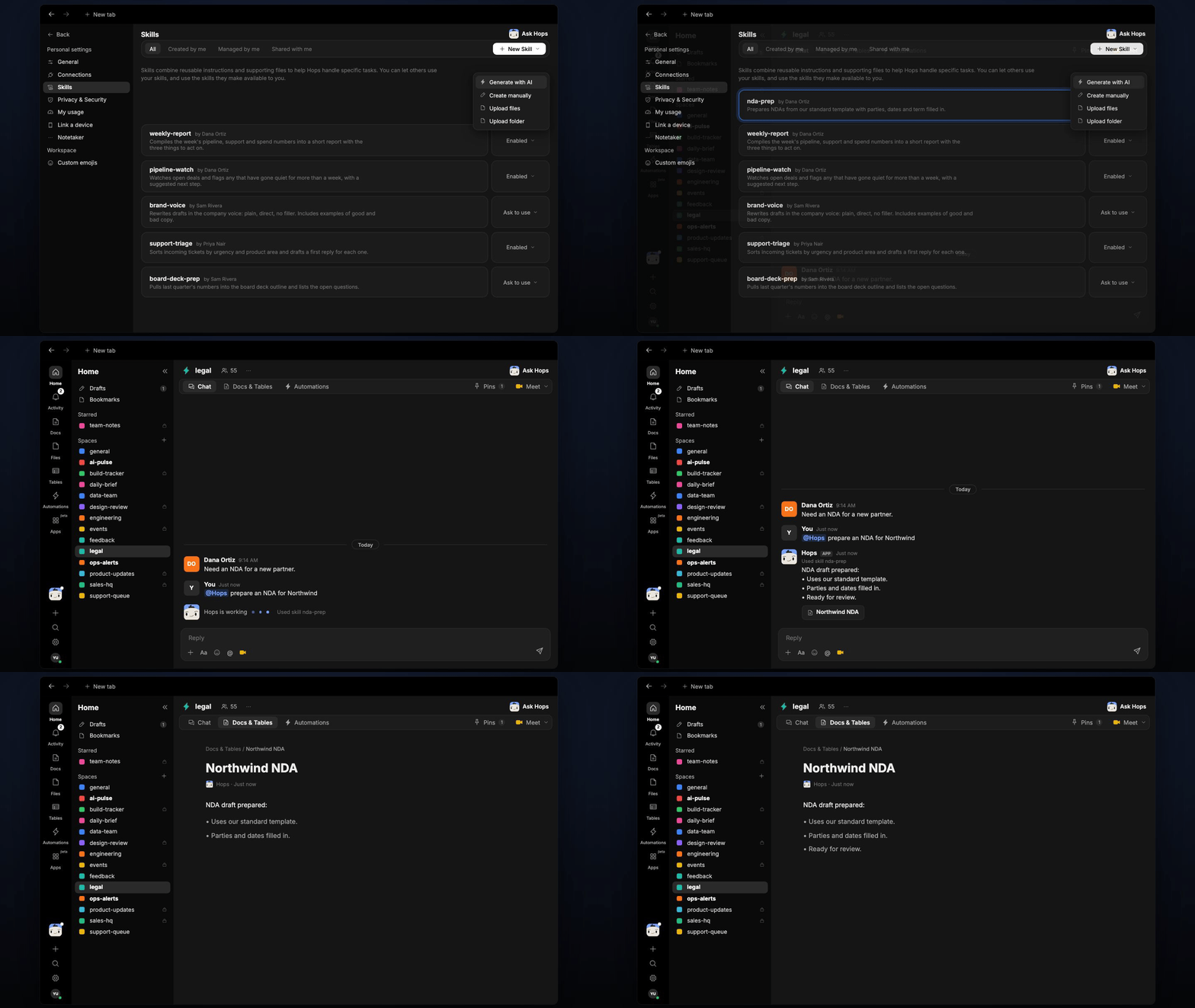
Ask Hops
Copy a prompt into any chat with Hops, or mention@Hops in a Space.
NDA draft prepared:
- Uses our standard mutual-NDA template.
- Parties, date and purpose filled in.
- Flagged for legal review: requested 3 year term differs from the template.
What you get
- A draft in chat, in the same thread, with the filled details and anything flagged.
- A saved Doc, when you ask for one. Say “save this as a doc” and Hops writes the NDA to Docs in the Space.
Connections needed
Connect these apps. Each card opens Connections in the app.Google Drive
NDA templates (or SharePoint).
DocuSign
Send for signature (or your e-signature tool).
Set it up
1
Connect your apps
Connect the apps above in Connections.See Connections.
2
Pin the template
Create a legal Space and pin the NDA template and the counterparty list in Space context.See Spaces and Space context.
3
Add the skill
4
Ask
Ask Hops in chat with the counterparty and purpose.