

How it runs: Triggered. An automation runs when a new invoice arrives in the AP inbox, and you can also ask Hops directly.
What it does
- Matches each invoice to its PO. Hops reads the invoice from the AP inbox in Gmail and matches it by vendor and amount against POs and bills in QuickBooks or Xero.
- Approves clean matches. Invoices within 2% of the PO are marked ready to approve.
- Flags overages. Anything over the PO amount is flagged and routed using the approval matrix pinned in Space context.
- Catches invoices with no PO. These are listed separately and sent to the person who should decide.
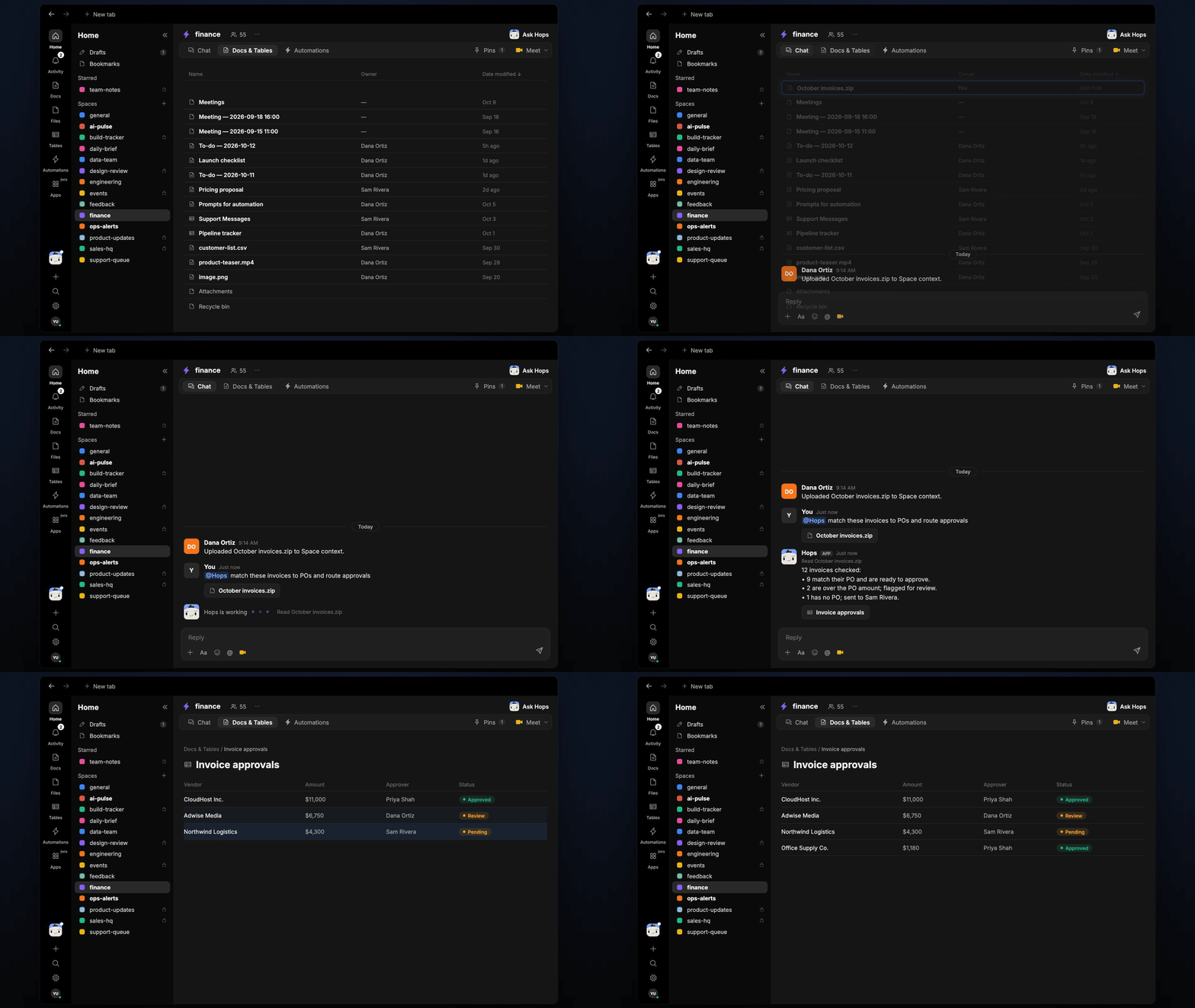
- Handles batches. Drop a zip of invoices into the Space and Hops checks them all in one pass.
Ask Hops
Copy a prompt into any chat with Hops, or mention@Hops in a Space.
12 invoices checked:
- 9 match their PO and are ready to approve.
- 2 are over the PO amount; flagged for review.
- 1 has no PO; sent to Sam Rivera.
What you get
- An answer in chat, in the same thread, whenever you ask.
- A Slack post to the approver when an invoice needs a decision, with the PO match and the reason.
- An invoice log Table in Tables of the Space with each invoice, its PO, status and approver.
- An optional draft reply to the vendor in Gmail for invoices that need a correction.
Connections needed
Connect these apps. Each card opens Connections in the app.QuickBooks
POs and bills (or Xero).
Gmail
Reads the invoice inbox and drafts vendor replies.
Slack
Routes approvals to the right person.
Set it up
1
Create the Space
Create a finance Space. Pin the approval matrix and PO tracker in Space context.See Spaces and Space context.
2
Connect your apps
Connect the apps above in Connections.See Connections.
3
Add the skill
4
Trigger it
Run when a new invoice arrives in the AP inbox. Hops matches it, posts to the approver in Slack and adds a row to the invoice log Table.See Automation.