

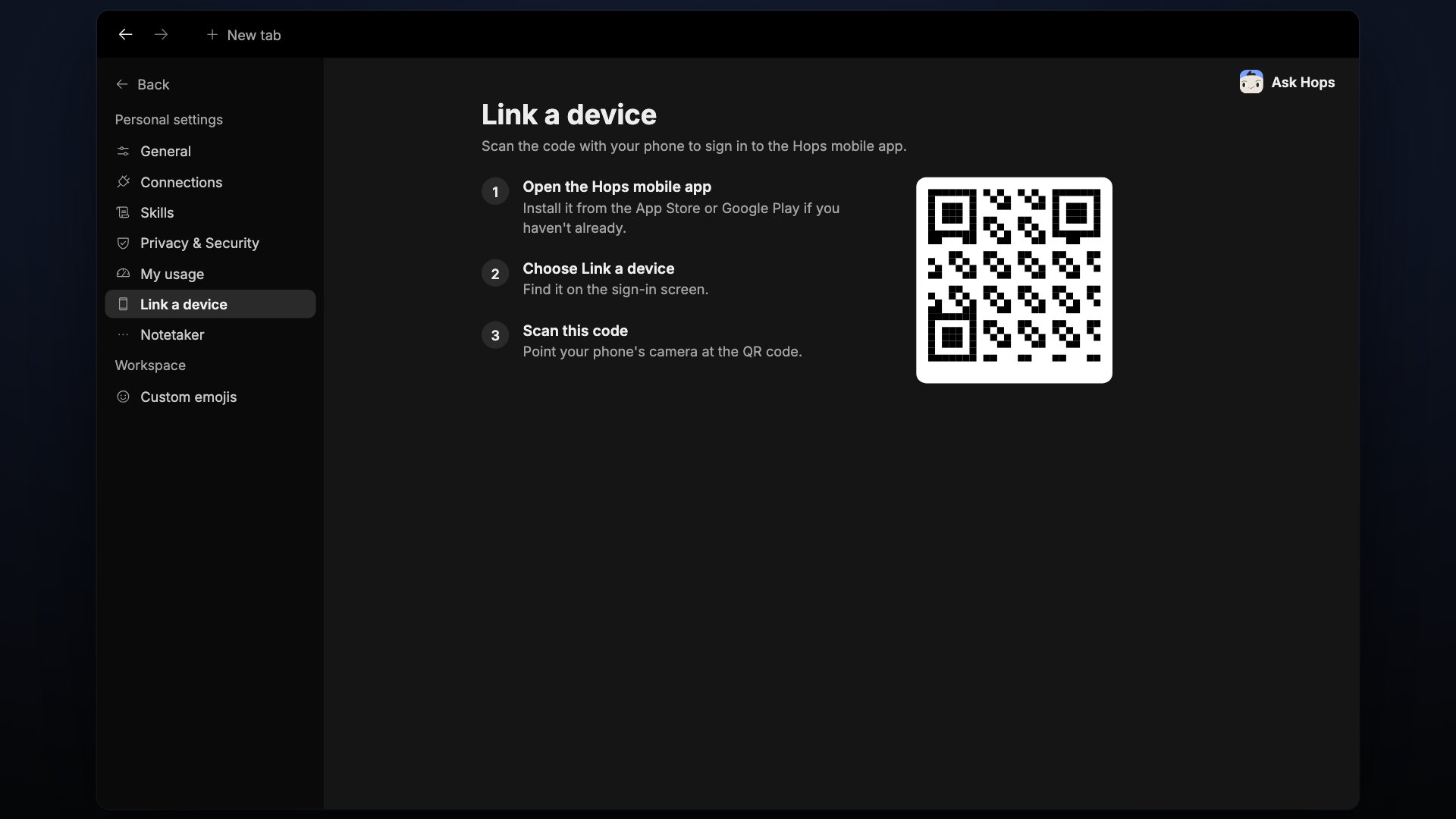
XXXX-XXXX, with the label Enter this code in the Hops mobile app. The code is time-limited. The page shows Expires in with a countdown, and a Regenerate button gives you a fresh code.
How it works
1
Open the app
Install and open the Hops app on the phone or tablet you want to sign in.
2
Scan or enter the code
On the device, choose Scan code and point the camera here, or type the code in.
3
Compare and approve
Both screens show the same 6-digit number. If they match, approve it here.