> ## Documentation Index
> Fetch the complete documentation index at: https://hopsdocs.mintlify.site/llms.txt
> Use this file to discover all available pages before exploring further.
# Spend anomaly alert
> Flag categories that go over or under plan by 10% each week.
Overspend is usually noticed at month end, after it is too late to act. Hops compares each department's weekly spend to plan and flags categories that are more than 10% over or under.
**How it runs:** Scheduled. An automation runs every Monday at 9am, posts anomalies to the Finance Space and saves the comparison as a Table. You can also ask Hops any time.
## What it does
* **Compares spend to plan every week.** Hops reads actuals from your accounting tool and the plan from Google Sheets or Excel.
* **Flags 10% variances either way.** Categories more than 10% over or under plan are called out.
* **Shows the numbers.** Each anomaly lists the department, the plan, the actuals and the variance.
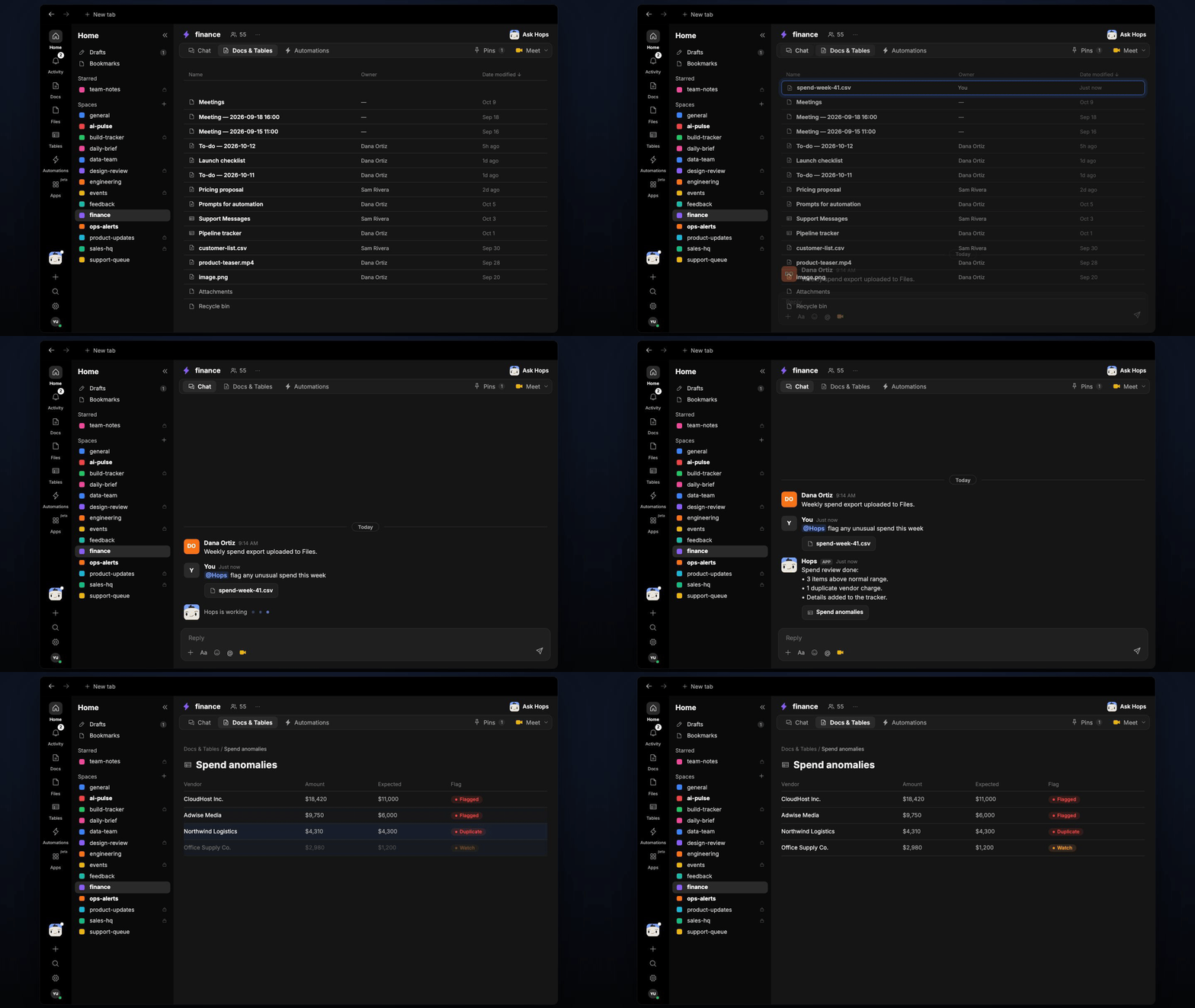
* **Works from uploads too.** Drop a spend export such as a weekly CSV into the Space and Hops reads it.
* **Stays quiet when nothing is off.** If every category is within range, the post says so in one line.
 ## Ask Hops
Copy a prompt into any chat with Hops, or mention `@Hops` in a Space.
```text theme={null}
Flag any unusual spend this week.
```
```text theme={null}
Compare week 41 spend to plan by department.
```
```text theme={null}
Which categories are more than 10% over plan this month?
```
```text theme={null}
Why is Marketing 22% over plan? Show the transactions.
```
```text theme={null}
List categories that came in under plan by more than 10%.
```
Example reply:
> Week 41 spend anomalies:
>
> * Marketing: plan $48K, actual $59K, +23%.
> * Cloud hosting: plan $30K, actual $26K, -13%.
> * All other categories are within 10% of plan.
## What you get
* **An answer in chat**, in the same thread, whenever you ask.
* **A weekly post** in the Finance Space listing each anomaly with department, plan, actuals and variance.
* **A spend vs plan Table** in **Tables** of the Space, updated each week.
## Connections needed
Connect these apps. Each card opens Connections in the app.
Actual spend (or Xero or your accounting tool).
The plan to compare against (or Excel).
Posts anomalies to the Finance channel.
## Set it up
Create one Finance Space. Add the current plan to Space context.
See [Spaces](/docs/spaces/overview) and [Space context](/docs/spaces/space-context).
Connect the apps above in **Connections**.
See [Connections](/docs/connections/overview).
Give Hops these instructions:
```text theme={null}
You monitor spend against plan. Weekly, compare each department's spend to plan. Flag any category that's more than 10% over or under. Post to the Finance Space with the department, the plan, the actuals, and the variance.
```
See [Build a skill](/docs/agents/build-a-skill).
Every Monday at 9am Hops posts anomalies to the Finance Space and updates the spend vs plan Table.
See [Automation](/docs/spaces/automation).
## Related topics
- [Explore use cases](/use-cases/overview.md)
- [Finance](/teams/finance.md)
- [Skills](/agents/skills.md)
- [Production alert triage](/teams/product-engineering/use-cases/prod-alert-triage.md)
- [My usage](/settings/my-usage.md)
This documentation is built and hosted on [Mintlify](https://mintlify.com), a developer documentation platform.
## Ask Hops
Copy a prompt into any chat with Hops, or mention `@Hops` in a Space.
```text theme={null}
Flag any unusual spend this week.
```
```text theme={null}
Compare week 41 spend to plan by department.
```
```text theme={null}
Which categories are more than 10% over plan this month?
```
```text theme={null}
Why is Marketing 22% over plan? Show the transactions.
```
```text theme={null}
List categories that came in under plan by more than 10%.
```
Example reply:
> Week 41 spend anomalies:
>
> * Marketing: plan $48K, actual $59K, +23%.
> * Cloud hosting: plan $30K, actual $26K, -13%.
> * All other categories are within 10% of plan.
## What you get
* **An answer in chat**, in the same thread, whenever you ask.
* **A weekly post** in the Finance Space listing each anomaly with department, plan, actuals and variance.
* **A spend vs plan Table** in **Tables** of the Space, updated each week.
## Connections needed
Connect these apps. Each card opens Connections in the app.
Actual spend (or Xero or your accounting tool).
The plan to compare against (or Excel).
Posts anomalies to the Finance channel.
## Set it up
Create one Finance Space. Add the current plan to Space context.
See [Spaces](/docs/spaces/overview) and [Space context](/docs/spaces/space-context).
Connect the apps above in **Connections**.
See [Connections](/docs/connections/overview).
Give Hops these instructions:
```text theme={null}
You monitor spend against plan. Weekly, compare each department's spend to plan. Flag any category that's more than 10% over or under. Post to the Finance Space with the department, the plan, the actuals, and the variance.
```
See [Build a skill](/docs/agents/build-a-skill).
Every Monday at 9am Hops posts anomalies to the Finance Space and updates the spend vs plan Table.
See [Automation](/docs/spaces/automation).
## Related topics
- [Explore use cases](/use-cases/overview.md)
- [Finance](/teams/finance.md)
- [Skills](/agents/skills.md)
- [Production alert triage](/teams/product-engineering/use-cases/prod-alert-triage.md)
- [My usage](/settings/my-usage.md)
This documentation is built and hosted on [Mintlify](https://mintlify.com), a developer documentation platform.