> ## Documentation Index
> Fetch the complete documentation index at: https://hopsdocs.mintlify.site/llms.txt
> Use this file to discover all available pages before exploring further.
# Spaces overview
> A Space is where your team and your agents work together. Learn what a Space is and how to create one.
A Space is a shared workspace for a team and its agents. Everything relevant to a project or workflow lives here: conversations, docs, the Space Context document, artifacts, and agent activity.
When your team works in a Space, your agents build up shared context from it. The next question in that Space already has the background.
 ## How Spaces work
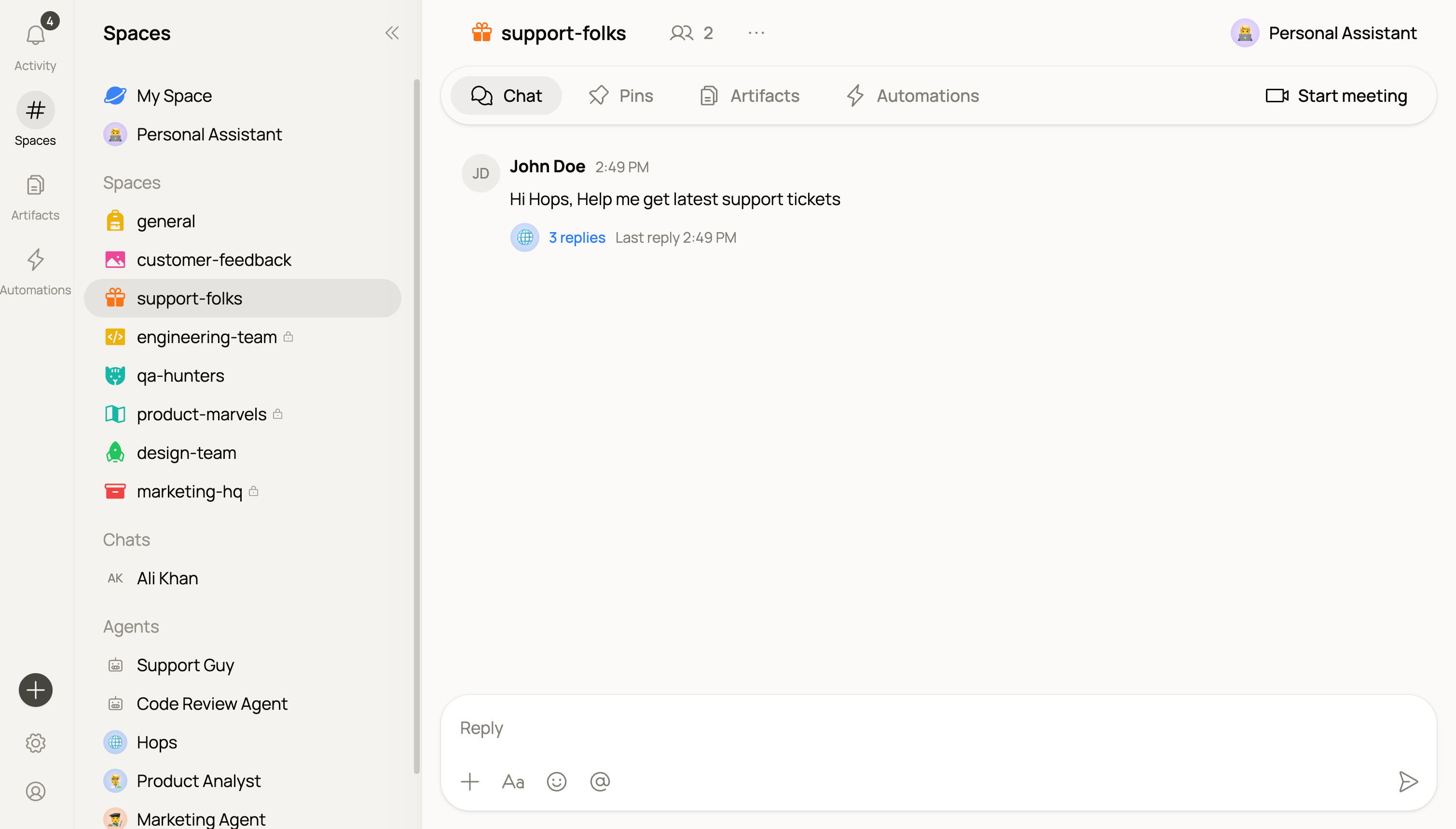
**One Space, one shared context.** Everything in a Space — decisions, drafts, threads, docs — contributes to the shared context your agents draw from.
**People and agents work side by side.** Tag `@Hops` or any custom agent in a thread. A Space can have multiple agents; tag different ones in the same conversation and each responds from its own specialization.
**Spaces are scoped.** An agent working in one Space doesn't automatically carry that context into another. You control what each Space contains and who can see it.
Set up the [Space Context document](/docs/spaces/space-context) early. It's the single fastest way to make every agent in the Space sharper — one brief every agent reads before responding.
## Space visibility
Every Space is either public or private inside your workspace. You pick when you create it and can change it later.
| Visibility | Who can see it | Good for |
| ----------- | -------------------------------------------- | --------------------------------------------------- |
| **Public** | Everyone in your workspace can find and join | Team channels, company-wide projects |
| **Private** | Only invited members and agents | Client work, confidential launches, exec-only rooms |
Private Spaces are hidden from search for people who aren't invited. Agents scoped to a private Space only draw context from it.
## Work with multiple agents in one thread
A Space can have several agents. Tag them in the same conversation and each one responds from its own instructions and connected tools.
```
@Researcher pull the latest competitor pricing for Q3
@Copywriter turn those findings into three subject-line options
@SDR draft a follow-up to yesterday's demo using the new positioning
```
Each `@` tag routes the request to that agent. Replies land in the same thread so the whole team (and every other agent) sees the context.
## Create a Space
## How Spaces work
**One Space, one shared context.** Everything in a Space — decisions, drafts, threads, docs — contributes to the shared context your agents draw from.
**People and agents work side by side.** Tag `@Hops` or any custom agent in a thread. A Space can have multiple agents; tag different ones in the same conversation and each responds from its own specialization.
**Spaces are scoped.** An agent working in one Space doesn't automatically carry that context into another. You control what each Space contains and who can see it.
Set up the [Space Context document](/docs/spaces/space-context) early. It's the single fastest way to make every agent in the Space sharper — one brief every agent reads before responding.
## Space visibility
Every Space is either public or private inside your workspace. You pick when you create it and can change it later.
| Visibility | Who can see it | Good for |
| ----------- | -------------------------------------------- | --------------------------------------------------- |
| **Public** | Everyone in your workspace can find and join | Team channels, company-wide projects |
| **Private** | Only invited members and agents | Client work, confidential launches, exec-only rooms |
Private Spaces are hidden from search for people who aren't invited. Agents scoped to a private Space only draw context from it.
## Work with multiple agents in one thread
A Space can have several agents. Tag them in the same conversation and each one responds from its own instructions and connected tools.
```
@Researcher pull the latest competitor pricing for Q3
@Copywriter turn those findings into three subject-line options
@SDR draft a follow-up to yesterday's demo using the new positioning
```
Each `@` tag routes the request to that agent. Replies land in the same thread so the whole team (and every other agent) sees the context.
## Create a Space
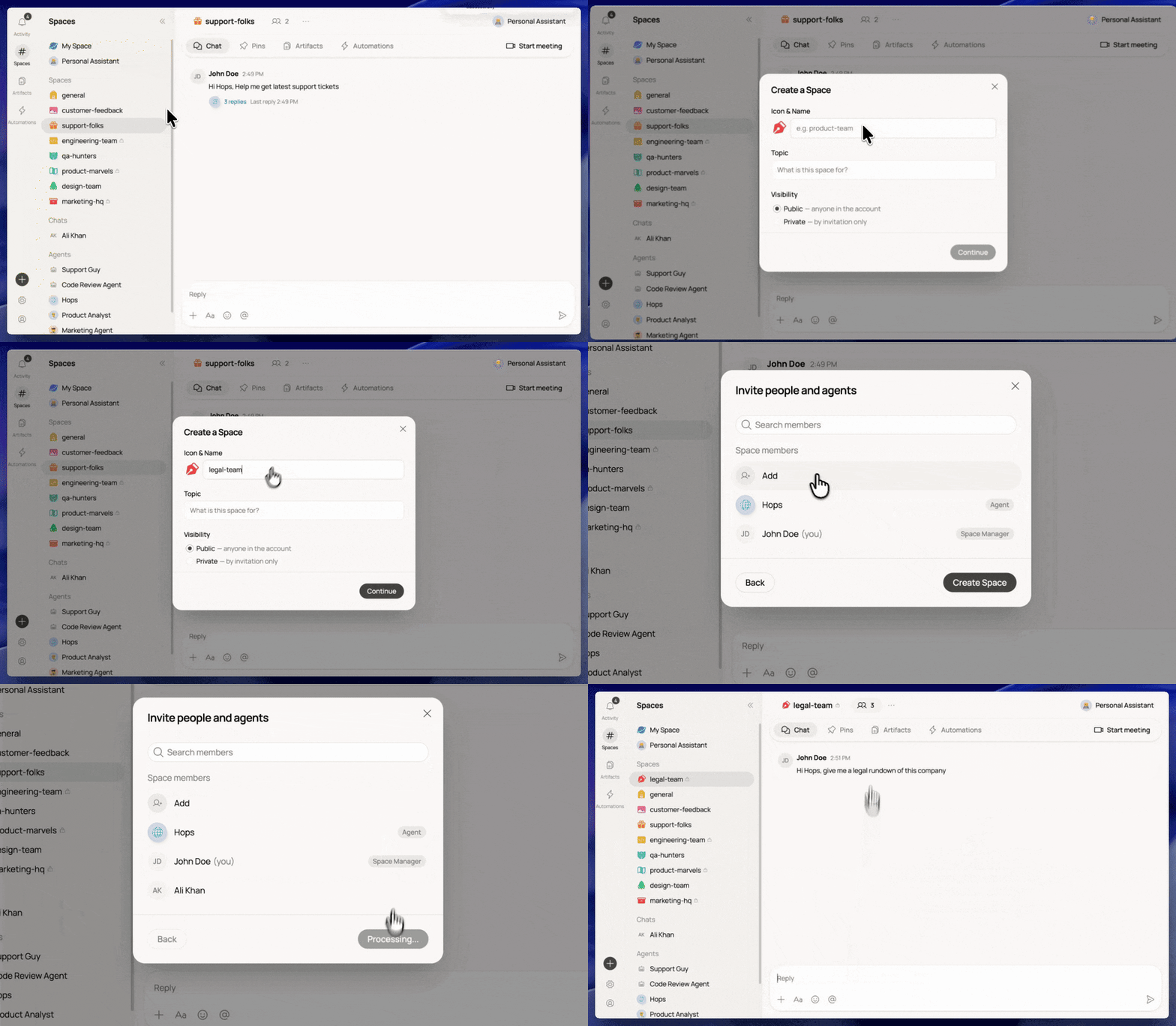 At the bottom of the left sidebar, click **+** and select **Space**.
Give it a clear, specific name. The name tells your team and your agents what this Space is for.
Good examples: `Product launch Q3`, `Acme Corp account`, `Marketing team`.
Your Space is ready. Start a thread, [set up the Space Context document](/docs/spaces/space-context), or tag an agent to get to work.
## Add agents to a Space
Every Space has `@Hops` by default. To bring in **custom agents** — for example a Legal helper, a Researcher, or an SDR — invite them from the Space's **Agents** panel.
At the bottom of the left sidebar, click **+** and select **Space**.
Give it a clear, specific name. The name tells your team and your agents what this Space is for.
Good examples: `Product launch Q3`, `Acme Corp account`, `Marketing team`.
Your Space is ready. Start a thread, [set up the Space Context document](/docs/spaces/space-context), or tag an agent to get to work.
## Add agents to a Space
Every Space has `@Hops` by default. To bring in **custom agents** — for example a Legal helper, a Researcher, or an SDR — invite them from the Space's **Agents** panel.
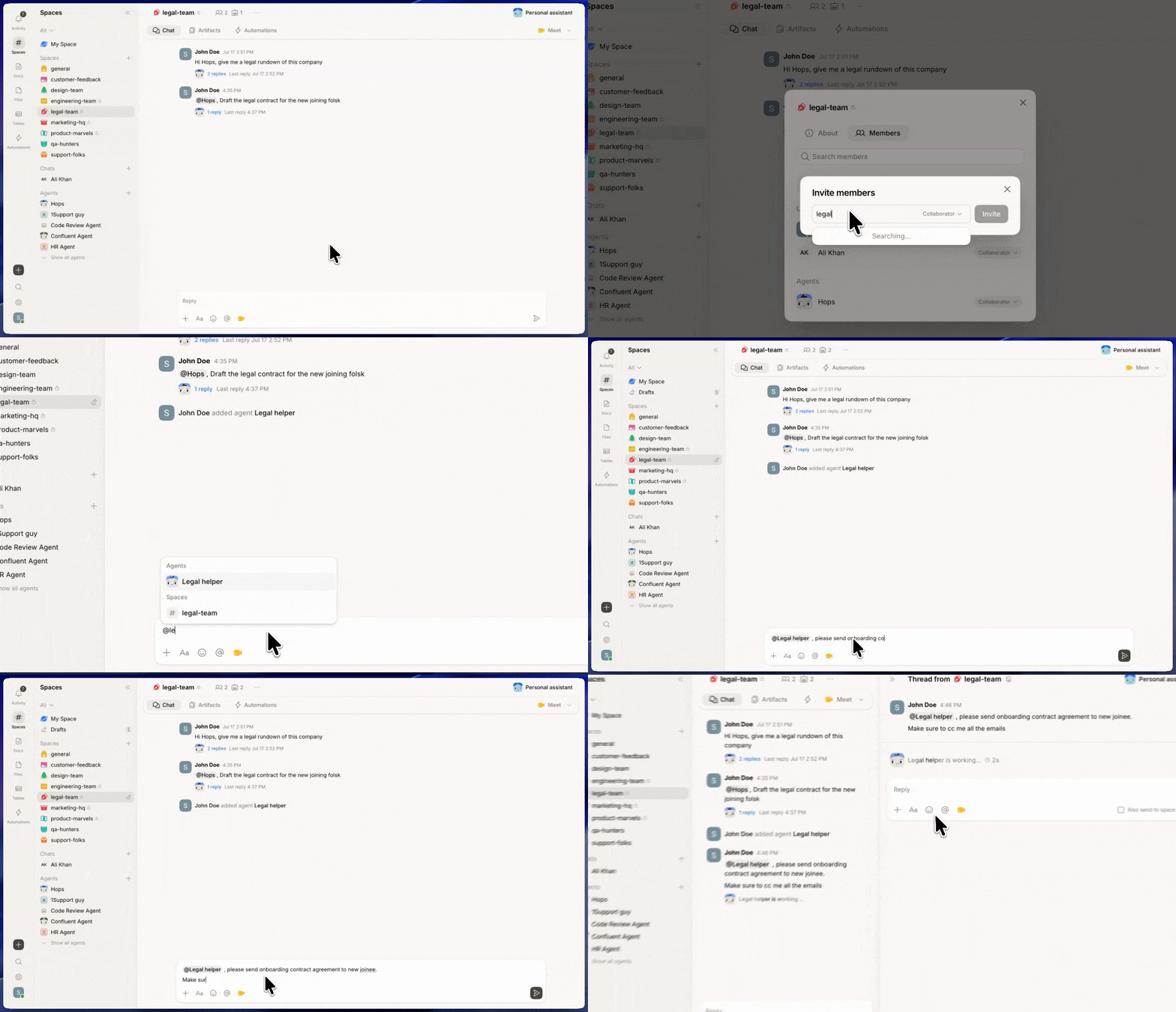 Inside your Space, open the **Agents** tab in the right rail.
Click **Add agent** and pick from your custom agents (or create a new one on the fly).
In the Space's chat, tag any agent with `@name`. Multiple agents can work in the same thread, each responding from its own instructions and tools.
Only add the agents a Space actually needs. Fewer, more specialized agents give sharper, less noisy responses.
See [Agents](/docs/agents/overview) and [Custom agents](/docs/agents/custom-agents) for more.
## When to create a new Space
Create a Space for a distinct project, team, or ongoing workflow:
| Type | Good for |
| ------------------ | ---------------------------------------------------- |
| **Project** | A specific initiative with a start and end |
| **Team channel** | An ongoing team with recurring workflows |
| **Client account** | All context for one external relationship |
| **Process** | A repeating workflow (hiring, onboarding, reporting) |
Keep one Space per topic. Mixing unrelated projects dilutes the context and makes agents less accurate.
## What's inside a Space
Threaded conversations with your team and your agents. Also where pins and meetings live.
A standing brief every agent in the Space reads before responding.
Scheduled tasks that run on their own.
People and agents in the Space, and their roles.
Docs, files, and tables created in a Space also show up in the global [Artifacts](/docs/artifacts/overview) tabs in the left sidebar.
## Common Space setups
Not sure how to structure your first few Spaces? Start from a proven pattern.
Campaign launches, content repurposing, and brand copywriting in one room.
Pre-call prep, post-call follow-ups, and clean deal handoffs.
Contract summaries, NDA prep, and compliance Q\&A with a Legal helper agent.
See [Teams & Use cases](/docs/teams/founders-executives) for every team's playbook.
Inside your Space, open the **Agents** tab in the right rail.
Click **Add agent** and pick from your custom agents (or create a new one on the fly).
In the Space's chat, tag any agent with `@name`. Multiple agents can work in the same thread, each responding from its own instructions and tools.
Only add the agents a Space actually needs. Fewer, more specialized agents give sharper, less noisy responses.
See [Agents](/docs/agents/overview) and [Custom agents](/docs/agents/custom-agents) for more.
## When to create a new Space
Create a Space for a distinct project, team, or ongoing workflow:
| Type | Good for |
| ------------------ | ---------------------------------------------------- |
| **Project** | A specific initiative with a start and end |
| **Team channel** | An ongoing team with recurring workflows |
| **Client account** | All context for one external relationship |
| **Process** | A repeating workflow (hiring, onboarding, reporting) |
Keep one Space per topic. Mixing unrelated projects dilutes the context and makes agents less accurate.
## What's inside a Space
Threaded conversations with your team and your agents. Also where pins and meetings live.
A standing brief every agent in the Space reads before responding.
Scheduled tasks that run on their own.
People and agents in the Space, and their roles.
Docs, files, and tables created in a Space also show up in the global [Artifacts](/docs/artifacts/overview) tabs in the left sidebar.
## Common Space setups
Not sure how to structure your first few Spaces? Start from a proven pattern.
Campaign launches, content repurposing, and brand copywriting in one room.
Pre-call prep, post-call follow-ups, and clean deal handoffs.
Contract summaries, NDA prep, and compliance Q\&A with a Legal helper agent.
See [Teams & Use cases](/docs/teams/founders-executives) for every team's playbook.