> ## Documentation Index
> Fetch the complete documentation index at: https://hopsdocs.mintlify.site/llms.txt
> Use this file to discover all available pages before exploring further.
# Automation
> View and manage scheduled tasks and recurring automations across your Spaces and chats.
The Automation tab in a Space shows all recurring tasks set up for that Space, so you have a single view of everything that's running (or about to run).
You can also open **Automations** from the left sidebar to see every automation you manage across every Space in one place. Each entry shows whether it's enabled (green dot) or paused (gray dot), and clicking one opens its instructions, agent, schedule, timezone, and full **Runs** history with links back to each run's chat session.
 ## Where automations can be created
* **In a Space**: create an automation that uses one of the agents already added to that Space. You need to be a **Space Manager** to do this.
* **In My Space**: create an automation that uses your Personal Assistant, with whatever connections it has.
## Create a new automation
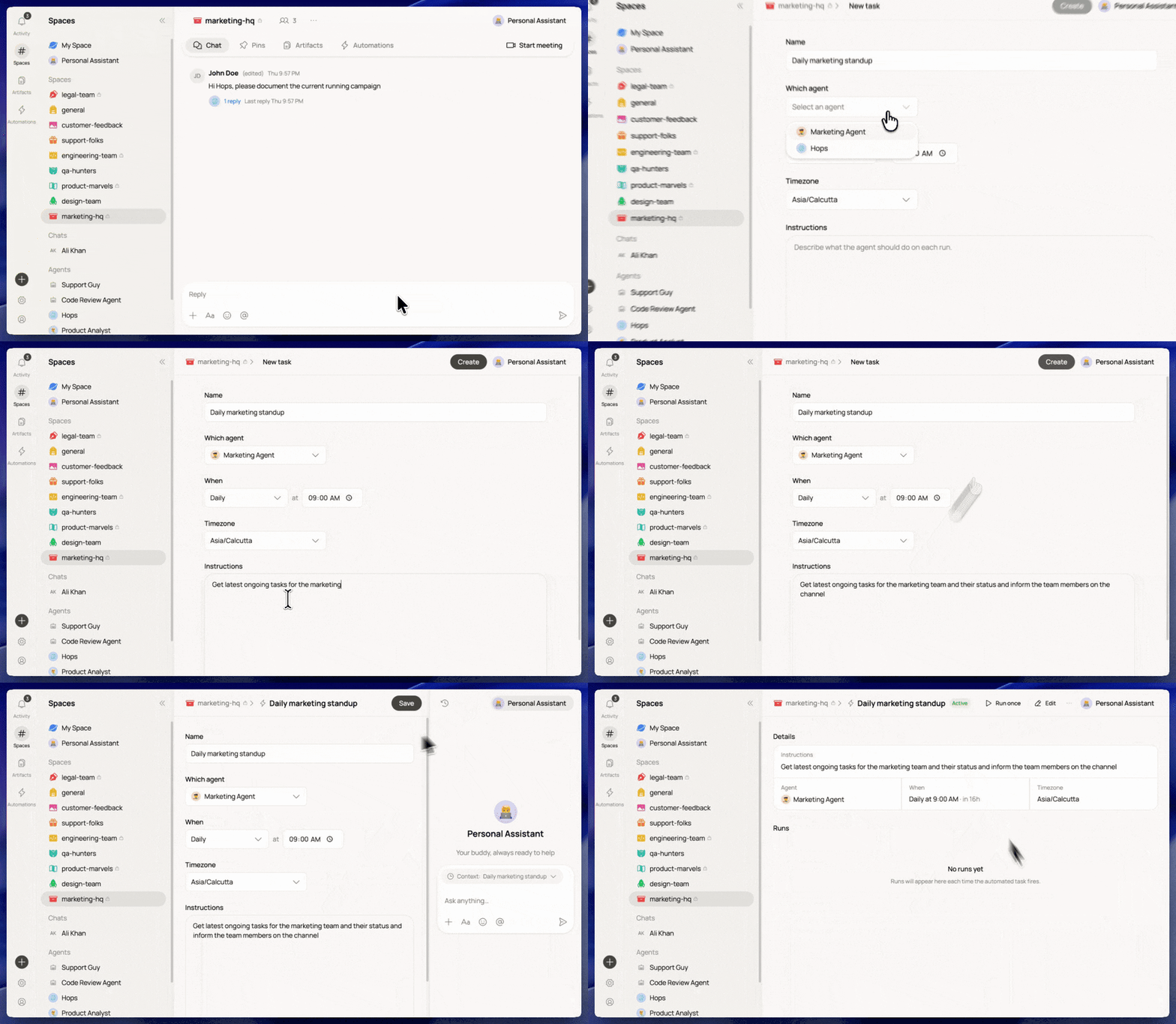
Go to the Space (or My Space) and select the **Automation** tab, then click **New task**.
Give the automation a clear name, for example "Daily marketing standup."
Pick which agent should run the task. In a Space, this is one of the agents added there. In My Space, this is your Personal Assistant.
Choose how often it runs (daily, weekly, or a custom schedule) and the time, along with your timezone.
Tell the agent exactly what to do each time it runs, the same way you'd write it in a chat. For example: *"Get the latest ongoing tasks for the marketing team and their status, and inform the team members on the channel."*
Click **Create**. The automation becomes **Active** and shows its details (instructions, agent, schedule, timezone) along with a **Runs** log that fills in as it executes.
## Managing automations
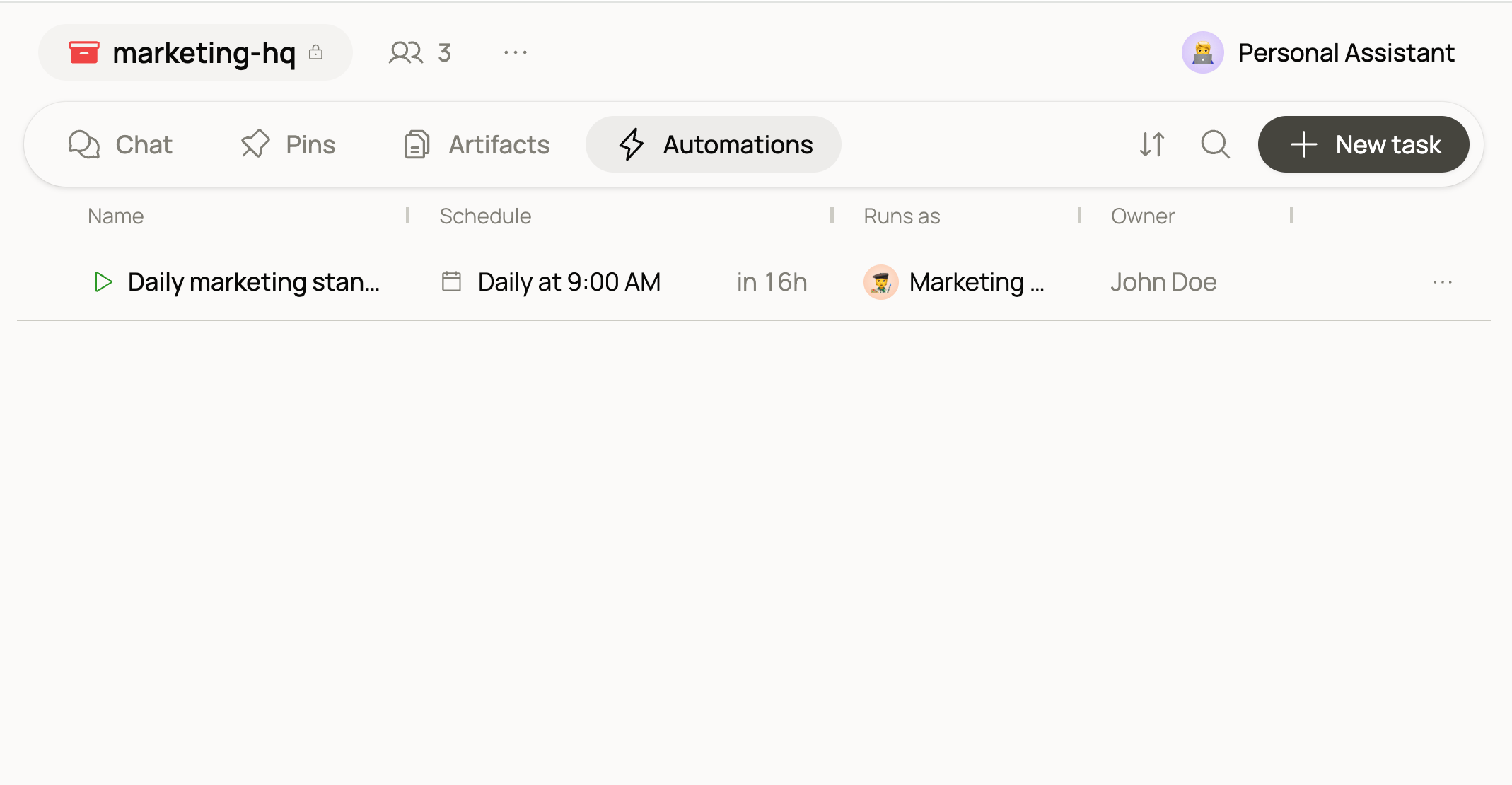
The Automation tab lists every automation with its **Name**, **Schedule**, which agent it **Runs as**, and its **Owner**.
## Where automations can be created
* **In a Space**: create an automation that uses one of the agents already added to that Space. You need to be a **Space Manager** to do this.
* **In My Space**: create an automation that uses your Personal Assistant, with whatever connections it has.
## Create a new automation
Go to the Space (or My Space) and select the **Automation** tab, then click **New task**.
Give the automation a clear name, for example "Daily marketing standup."
Pick which agent should run the task. In a Space, this is one of the agents added there. In My Space, this is your Personal Assistant.
Choose how often it runs (daily, weekly, or a custom schedule) and the time, along with your timezone.
Tell the agent exactly what to do each time it runs, the same way you'd write it in a chat. For example: *"Get the latest ongoing tasks for the marketing team and their status, and inform the team members on the channel."*
Click **Create**. The automation becomes **Active** and shows its details (instructions, agent, schedule, timezone) along with a **Runs** log that fills in as it executes.
## Managing automations
The Automation tab lists every automation with its **Name**, **Schedule**, which agent it **Runs as**, and its **Owner**.
 From an automation's detail view you can **Run once** to trigger it immediately, or use **Edit** to change its schedule, agent, or instructions.
## Related
* [Chat](/docs/spaces/chat)
From an automation's detail view you can **Run once** to trigger it immediately, or use **Edit** to change its schedule, agent, or instructions.
## Related
* [Chat](/docs/spaces/chat)