> ## Documentation Index
> Fetch the complete documentation index at: https://hopsdocs.mintlify.site/llms.txt
> Use this file to discover all available pages before exploring further.
# Link a device
> Sign in on your phone or tablet by pairing it with this account.
Link a device signs you in on your phone or tablet by pairing it with the account you're using on this computer. Open **Settings**, then **Link a device**.
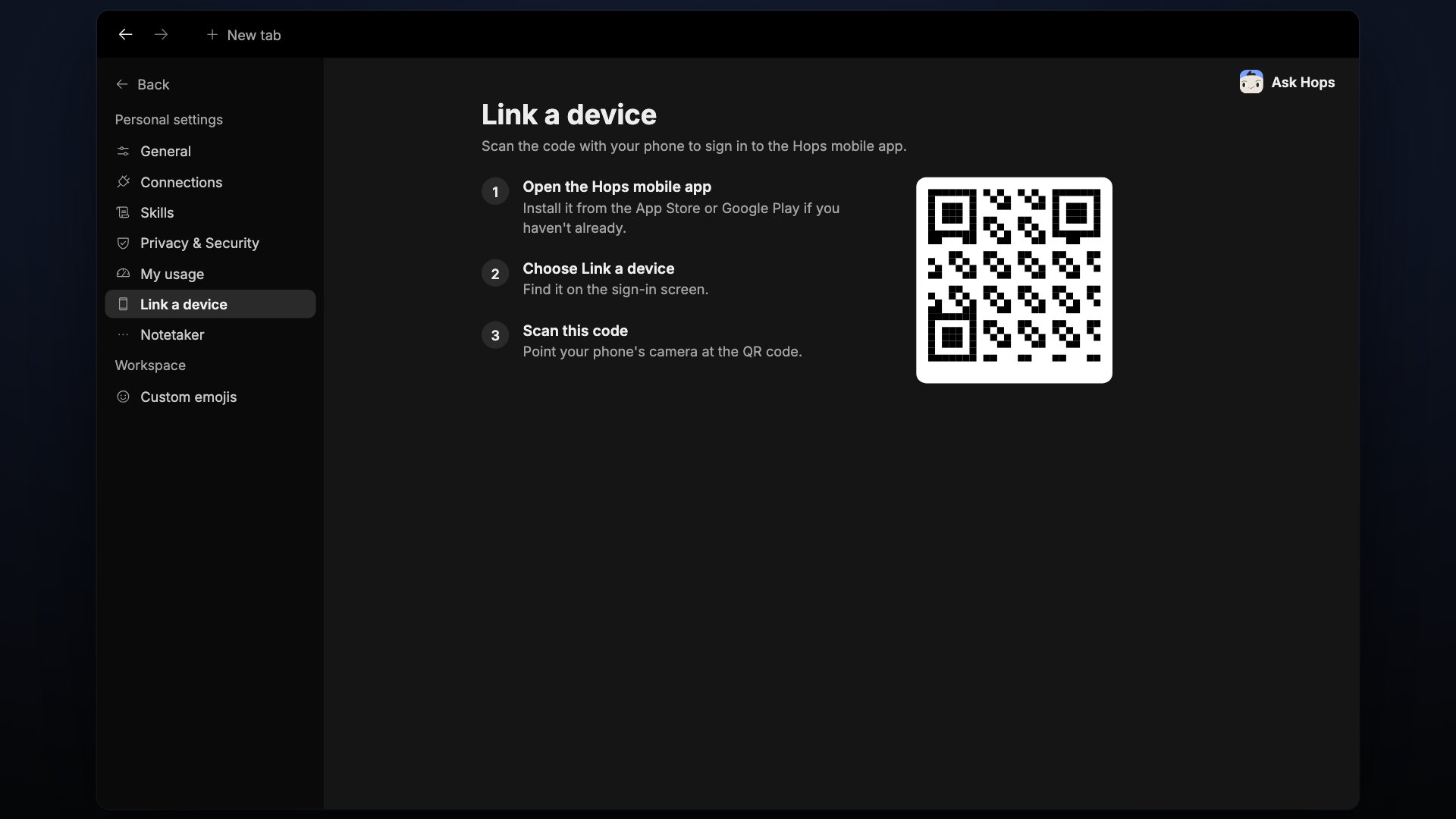 The page shows a QR code and a pairing code in the format `XXXX-XXXX`, with the label **Enter this code in the Hops mobile app**. The code is time-limited. The page shows **Expires in** with a countdown, and a **Regenerate** button gives you a fresh code.
Only link a device you're holding. Hops will never ask you to share this code.
## How it works
Install and open the Hops app on the phone or tablet you want to sign in.
On the device, choose **Scan code** and point the camera here, or type the code in.
Both screens show the same 6-digit number. If they match, approve it here.
## Manage signed-in devices
To see or sign out the devices already signed in, go to [Privacy & Security](/docs/settings/general#privacy-and-security).
## Related topics
- [General](/settings/general.md)
- [Files](/artifacts/files.md)
- [Welcome](/welcome.md)
- [Chat](/spaces/chat.md)
- [Feedback mining](/teams/product-engineering/use-cases/feedback-mining.md)
This documentation is built and hosted on [Mintlify](https://mintlify.com), a developer documentation platform.
The page shows a QR code and a pairing code in the format `XXXX-XXXX`, with the label **Enter this code in the Hops mobile app**. The code is time-limited. The page shows **Expires in** with a countdown, and a **Regenerate** button gives you a fresh code.
Only link a device you're holding. Hops will never ask you to share this code.
## How it works
Install and open the Hops app on the phone or tablet you want to sign in.
On the device, choose **Scan code** and point the camera here, or type the code in.
Both screens show the same 6-digit number. If they match, approve it here.
## Manage signed-in devices
To see or sign out the devices already signed in, go to [Privacy & Security](/docs/settings/general#privacy-and-security).
## Related topics
- [General](/settings/general.md)
- [Files](/artifacts/files.md)
- [Welcome](/welcome.md)
- [Chat](/spaces/chat.md)
- [Feedback mining](/teams/product-engineering/use-cases/feedback-mining.md)
This documentation is built and hosted on [Mintlify](https://mintlify.com), a developer documentation platform.