> ## Documentation Index
> Fetch the complete documentation index at: https://hopsdocs.mintlify.site/llms.txt
> Use this file to discover all available pages before exploring further.
# Get started
> Sign up, talk to Hops, and see the one-agent-plus-skills workspace in under five minutes.
Hops is where your team works with AI. One agent — **Hops** — extended by installable, shareable **skills**. This guide walks you through the basics so you can see it in action fast.
## 1. Sign up
Head to [app.hops.ai](https://app.hops.ai) and sign up. If someone on your team already has a workspace, they can send you an invite link instead.
Once you're in, you'll see your workspace with **My Space** (your private space) and **Hops** ready to go.
You're in. Now let's make it useful.
## 2. Talk to Hops
Every workspace comes with **Hops** — one AI agent, available in every Space. Open **Home** from the left sidebar to start a chat with Hops (titled **Chats with Hops**). Click **New thread** to begin a conversation, pick a starter prompt, or type your own. The same page has **Skills**, **Connections**, and your past **Threads**.
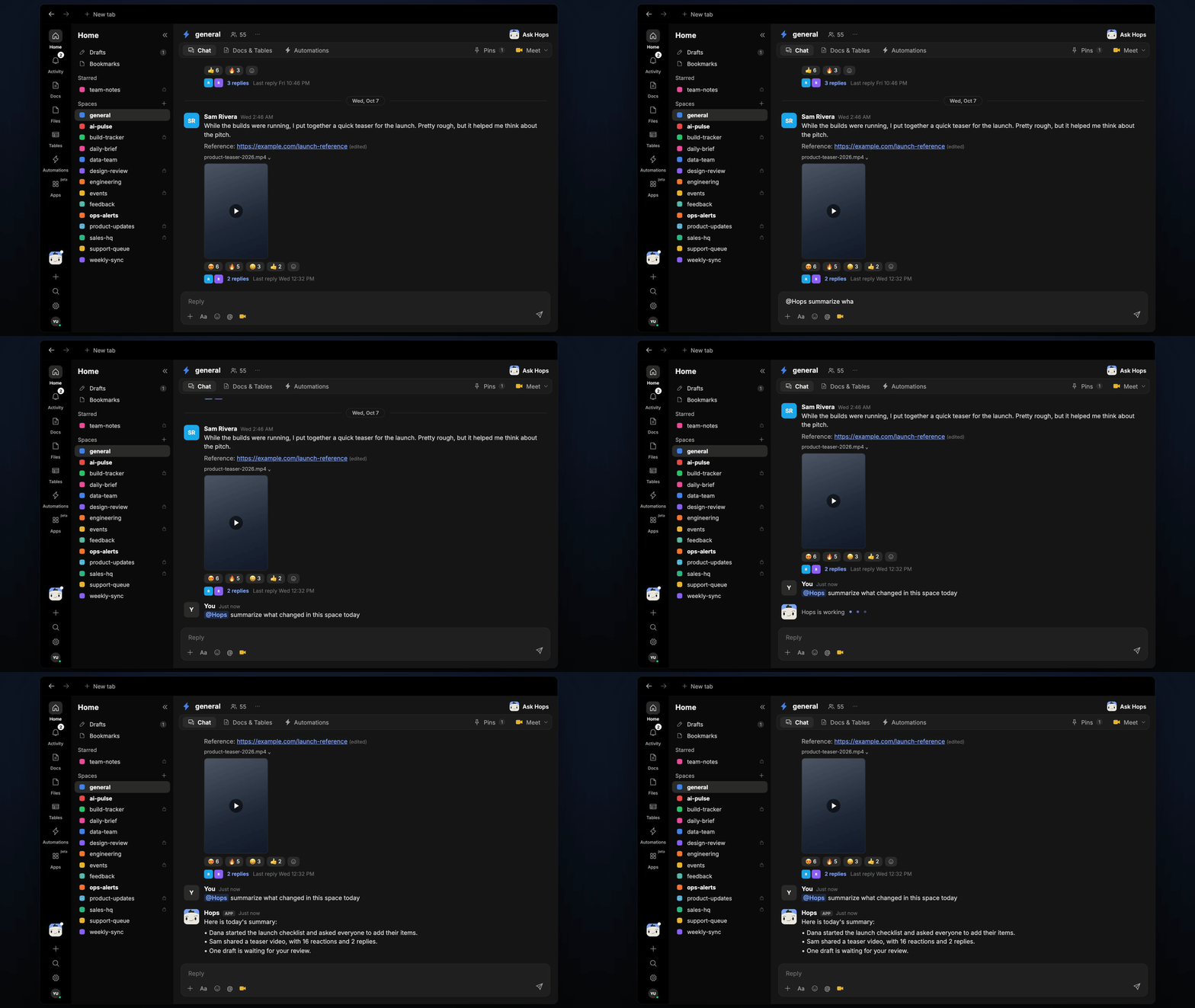 Type a message in the chat. No `@` tag needed here since you're already talking directly to Hops.
```
Draft a quick summary of what I should focus on this week
Help me outline a project brief for a new product launch
What can you help me with?
```
This is the fastest way to see Hops in action. Think of it as a smart teammate who's ready to help — and the same Hops shows up in every Space.
## 3. Create your first Space
A Space is where work happens. Think of it as a room for a project, a team, or a client. Everything inside a Space (conversations, docs, artifacts) becomes context Hops can use.
Type a message in the chat. No `@` tag needed here since you're already talking directly to Hops.
```
Draft a quick summary of what I should focus on this week
Help me outline a project brief for a new product launch
What can you help me with?
```
This is the fastest way to see Hops in action. Think of it as a smart teammate who's ready to help — and the same Hops shows up in every Space.
## 3. Create your first Space
A Space is where work happens. Think of it as a room for a project, a team, or a client. Everything inside a Space (conversations, docs, artifacts) becomes context Hops can use.
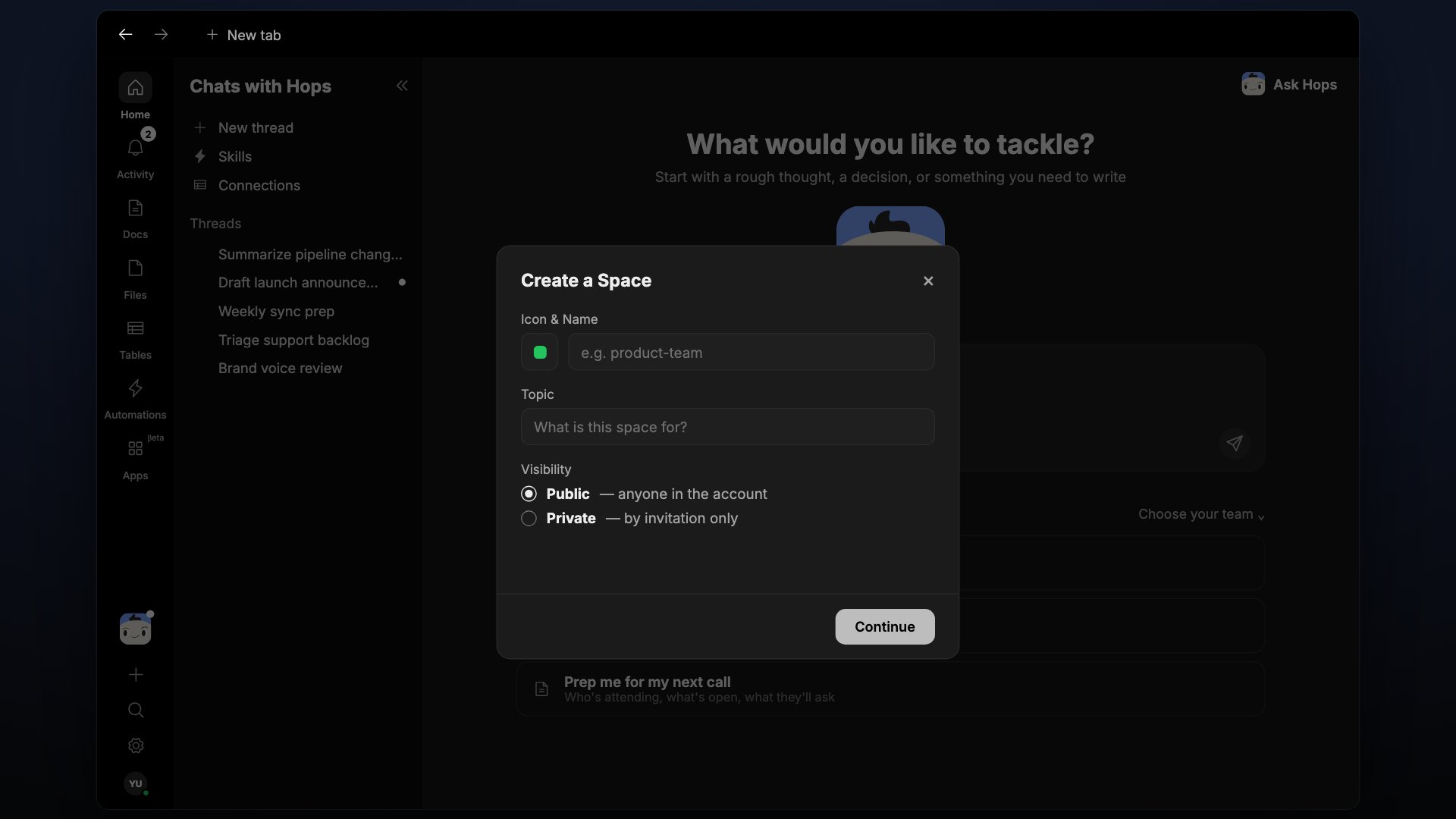 At the bottom of the left sidebar, click the **+** button and select **Space**.
In **Icon & Name**, pick an icon and enter a clear name like `Marketing`, `Q3 Launch`, or `Acme Account`. Optionally add a **Topic**.
Select **Public** (anyone in the account) or **Private** (by invitation only), then click **Continue**.
For more details on setup, visibility, and best practices, see [Create a Space](/docs/spaces/overview).
Keep each Space focused on one thing. The more specific the context, the better Hops performs.
## 4. Upload a skill
Skills extend Hops for specific roles — a Sales SDR, a Legal reviewer, a Pipeline watcher — without introducing a separate agent. Upload a skill and Hops uses it whenever the request matches. Skills are shareable across your workspace so everyone's Hops runs the same playbook.
Open **Home** and choose **Skills** in the sidebar, or click **Settings** at the bottom of the left sidebar and go to **Skills**.
Choose **Generate with AI**, **Create manually**, **Upload files** (single-file skill), or **Upload folder** (multi-file skill).
Tag Hops as usual. When a skill runs, the response is attributed like **Hops · Pipeline watch** so you know which skill shaped it.
For details, see [Skills](/docs/agents/skills). To package your own team's playbook, see [Build a skill](/docs/agents/build-a-skill).
## 5. Use Hops in your Space
Once you're in a Space, tag Hops with `@Hops` in the chat. Every Space has Hops available by default — no per-Space setup needed. If your workspace has skills installed, Hops uses them automatically when the request matches.
At the bottom of the left sidebar, click the **+** button and select **Space**.
In **Icon & Name**, pick an icon and enter a clear name like `Marketing`, `Q3 Launch`, or `Acme Account`. Optionally add a **Topic**.
Select **Public** (anyone in the account) or **Private** (by invitation only), then click **Continue**.
For more details on setup, visibility, and best practices, see [Create a Space](/docs/spaces/overview).
Keep each Space focused on one thing. The more specific the context, the better Hops performs.
## 4. Upload a skill
Skills extend Hops for specific roles — a Sales SDR, a Legal reviewer, a Pipeline watcher — without introducing a separate agent. Upload a skill and Hops uses it whenever the request matches. Skills are shareable across your workspace so everyone's Hops runs the same playbook.
Open **Home** and choose **Skills** in the sidebar, or click **Settings** at the bottom of the left sidebar and go to **Skills**.
Choose **Generate with AI**, **Create manually**, **Upload files** (single-file skill), or **Upload folder** (multi-file skill).
Tag Hops as usual. When a skill runs, the response is attributed like **Hops · Pipeline watch** so you know which skill shaped it.
For details, see [Skills](/docs/agents/skills). To package your own team's playbook, see [Build a skill](/docs/agents/build-a-skill).
## 5. Use Hops in your Space
Once you're in a Space, tag Hops with `@Hops` in the chat. Every Space has Hops available by default — no per-Space setup needed. If your workspace has skills installed, Hops uses them automatically when the request matches.
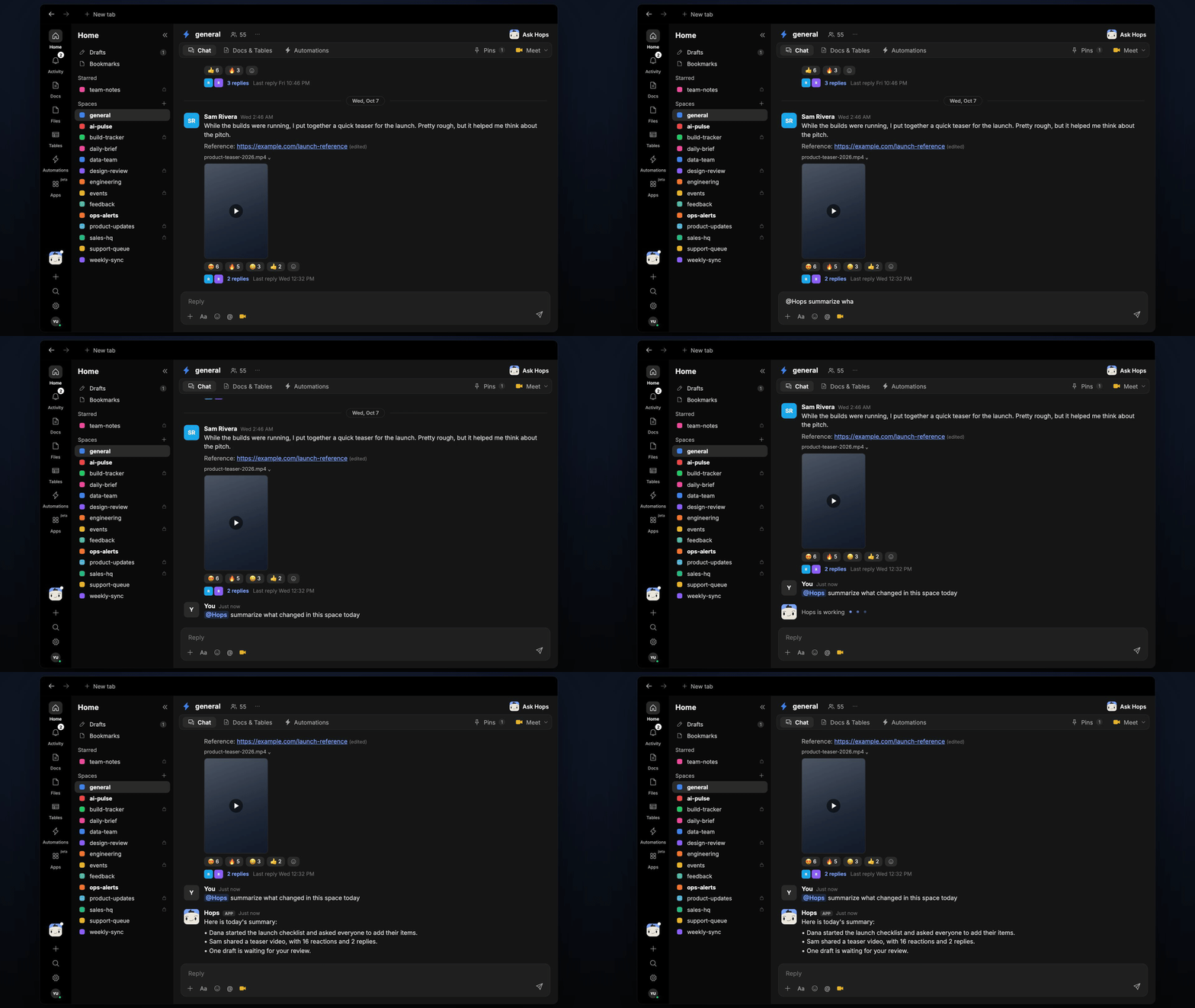 ```
@Hops summarize what this Space is about
@Hops pull the latest competitor pricing
@Hops draft three subject lines for the launch email
@Hops write a follow-up to yesterday's demo
```
Each response shows what Hops used and what it did. The more context the Space accumulates, the sharper Hops gets.
## 6. Invite your team
Bring your teammates into the workspace so they can join Spaces and work with Hops too.
```
@Hops summarize what this Space is about
@Hops pull the latest competitor pricing
@Hops draft three subject lines for the launch email
@Hops write a follow-up to yesterday's demo
```
Each response shows what Hops used and what it did. The more context the Space accumulates, the sharper Hops gets.
## 6. Invite your team
Bring your teammates into the workspace so they can join Spaces and work with Hops too.
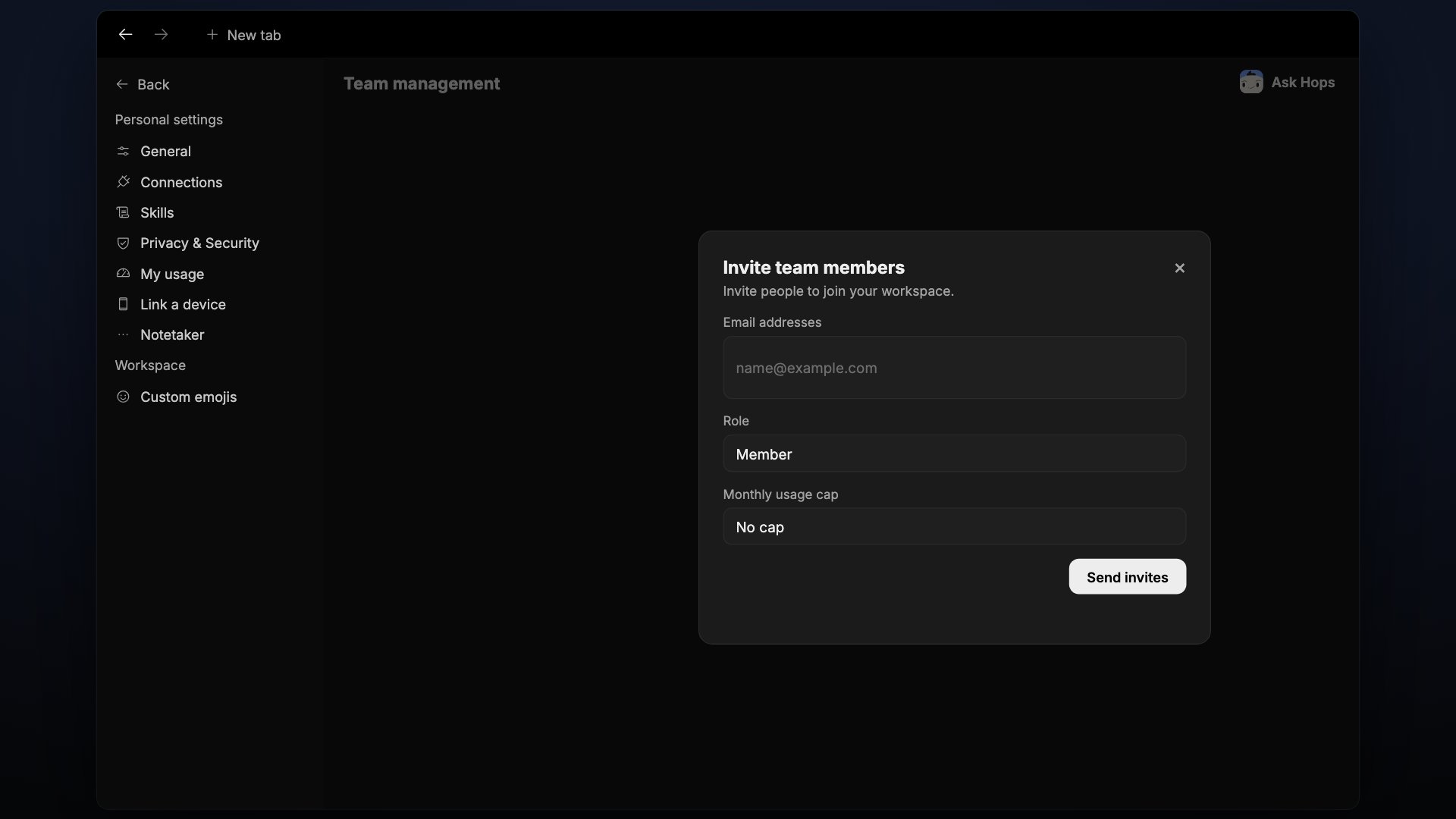 Click the **Settings** icon in the bottom of the left sidebar, then go to **Team Management**.
Add seats for your team members and invite them to join your workspace.
Once your teammates are in, they can join Spaces, chat with Hops, and share the same set of installed skills.
## 7. Connect your tools
Hops works best when it can pull from the tools your team already uses. Hops connects to 2,000+ apps. Connections are managed from **Settings → Connections** and are shareable across your workspace — anything you connect there is available to **Hops** for everyone in the workspace.
Click the **Settings** icon in the bottom of the left sidebar, then go to **Team Management**.
Add seats for your team members and invite them to join your workspace.
Once your teammates are in, they can join Spaces, chat with Hops, and share the same set of installed skills.
## 7. Connect your tools
Hops works best when it can pull from the tools your team already uses. Hops connects to 2,000+ apps. Connections are managed from **Settings → Connections** and are shareable across your workspace — anything you connect there is available to **Hops** for everyone in the workspace.
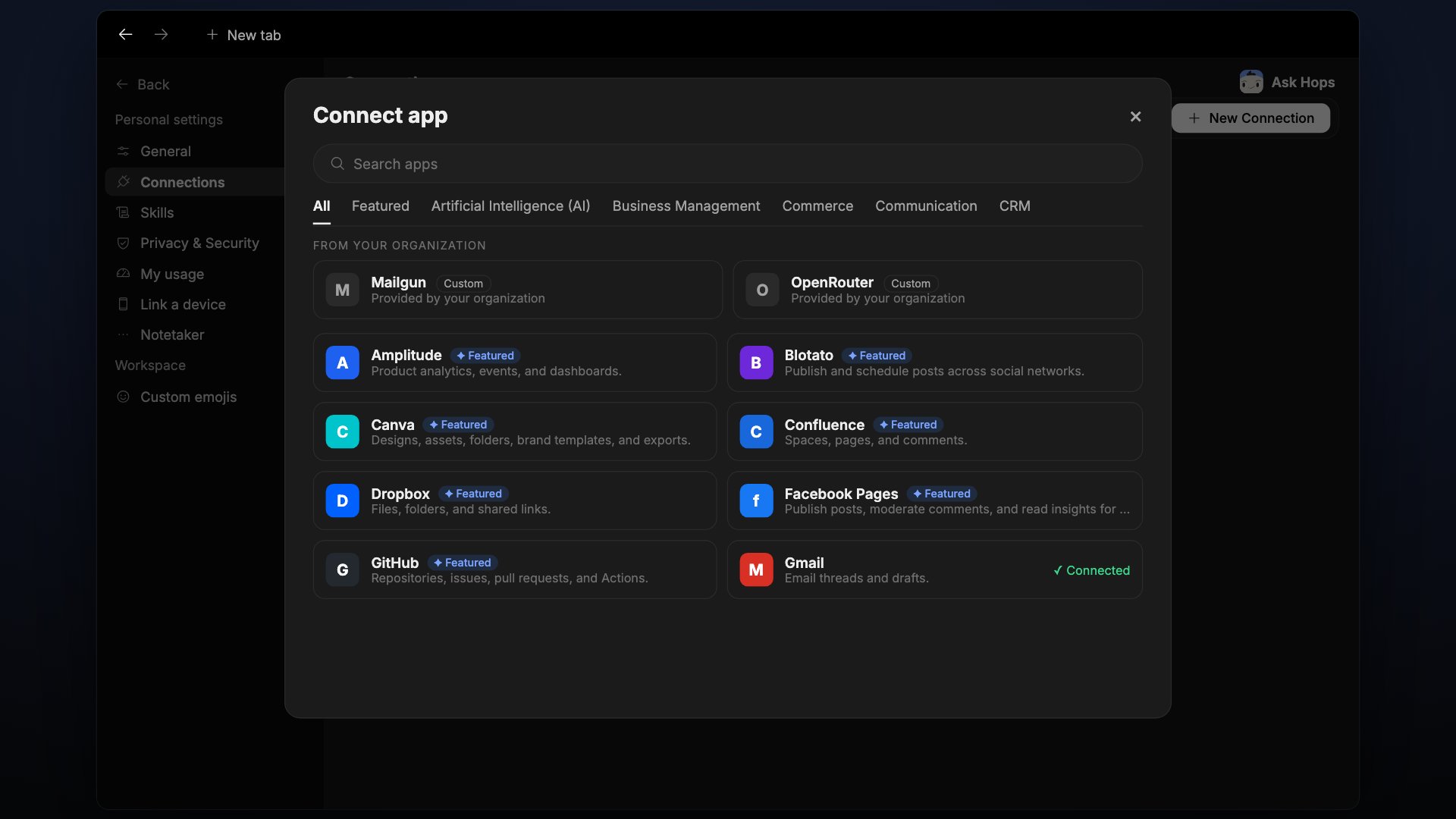 Go to **Settings → Connections** at [app.hops.ai/settings/connections](https://app.hops.ai/settings/connections) and click **New Connection**.
Browse or search the list. Some popular ones:
* **Gmail** for email threads and drafts
* **Google Drive & Docs** for files, folders, and documents
* **HubSpot** for contacts, deals, and pipeline
* **Jira** for issues, sprints, and boards
* **Linear** for issues, projects, and cycles
* **Notion** for pages, databases, and wikis
* **Slack** for channels and conversations
Click **Connect** next to any app, sign in, and grant Hops the permissions it needs. Hops (and any skill that uses the app) can start using it right away.
Start with one or two tools. You can add more any time. Each tool you connect makes Hops more useful.
## What to try next
Capture briefs, notes, and specs Hops can read and edit.
Share PDFs, images, and exports across Spaces from one place.
Track structured data — trackers, pipelines, research — with Hops.
Use ⌘K to find any space, doc, file, or message instantly.
Write a brief, add a brand guide, or note key decisions so Hops always has them.
Have Hops do recurring work automatically, like weekly summaries or daily reports.
Package your team's playbook into a reusable skill.
See how marketing, sales, finance, and other teams use Hops day to day.
Need help? Reach out at [support@hops.ai](mailto:support@hops.ai). We're happy to walk you through anything.
## Related topics
- [Connections overview](/connections/overview.md)
- [FAQ](/help/faq.md)
- [Welcome](/welcome.md)
- [Core concepts](/getting-started/core-concepts.md)
- [Forecast changes](/teams/revops/use-cases/forecast-changes.md)
This documentation is built and hosted on [Mintlify](https://mintlify.com), a developer documentation platform.
Go to **Settings → Connections** at [app.hops.ai/settings/connections](https://app.hops.ai/settings/connections) and click **New Connection**.
Browse or search the list. Some popular ones:
* **Gmail** for email threads and drafts
* **Google Drive & Docs** for files, folders, and documents
* **HubSpot** for contacts, deals, and pipeline
* **Jira** for issues, sprints, and boards
* **Linear** for issues, projects, and cycles
* **Notion** for pages, databases, and wikis
* **Slack** for channels and conversations
Click **Connect** next to any app, sign in, and grant Hops the permissions it needs. Hops (and any skill that uses the app) can start using it right away.
Start with one or two tools. You can add more any time. Each tool you connect makes Hops more useful.
## What to try next
Capture briefs, notes, and specs Hops can read and edit.
Share PDFs, images, and exports across Spaces from one place.
Track structured data — trackers, pipelines, research — with Hops.
Use ⌘K to find any space, doc, file, or message instantly.
Write a brief, add a brand guide, or note key decisions so Hops always has them.
Have Hops do recurring work automatically, like weekly summaries or daily reports.
Package your team's playbook into a reusable skill.
See how marketing, sales, finance, and other teams use Hops day to day.
Need help? Reach out at [support@hops.ai](mailto:support@hops.ai). We're happy to walk you through anything.
## Related topics
- [Connections overview](/connections/overview.md)
- [FAQ](/help/faq.md)
- [Welcome](/welcome.md)
- [Core concepts](/getting-started/core-concepts.md)
- [Forecast changes](/teams/revops/use-cases/forecast-changes.md)
This documentation is built and hosted on [Mintlify](https://mintlify.com), a developer documentation platform.