> ## Documentation Index
> Fetch the complete documentation index at: https://hopsdocs.mintlify.site/llms.txt
> Use this file to discover all available pages before exploring further.
# Connections overview
> Connect the tools your team already uses so your agents work from real context, not a blank slate.
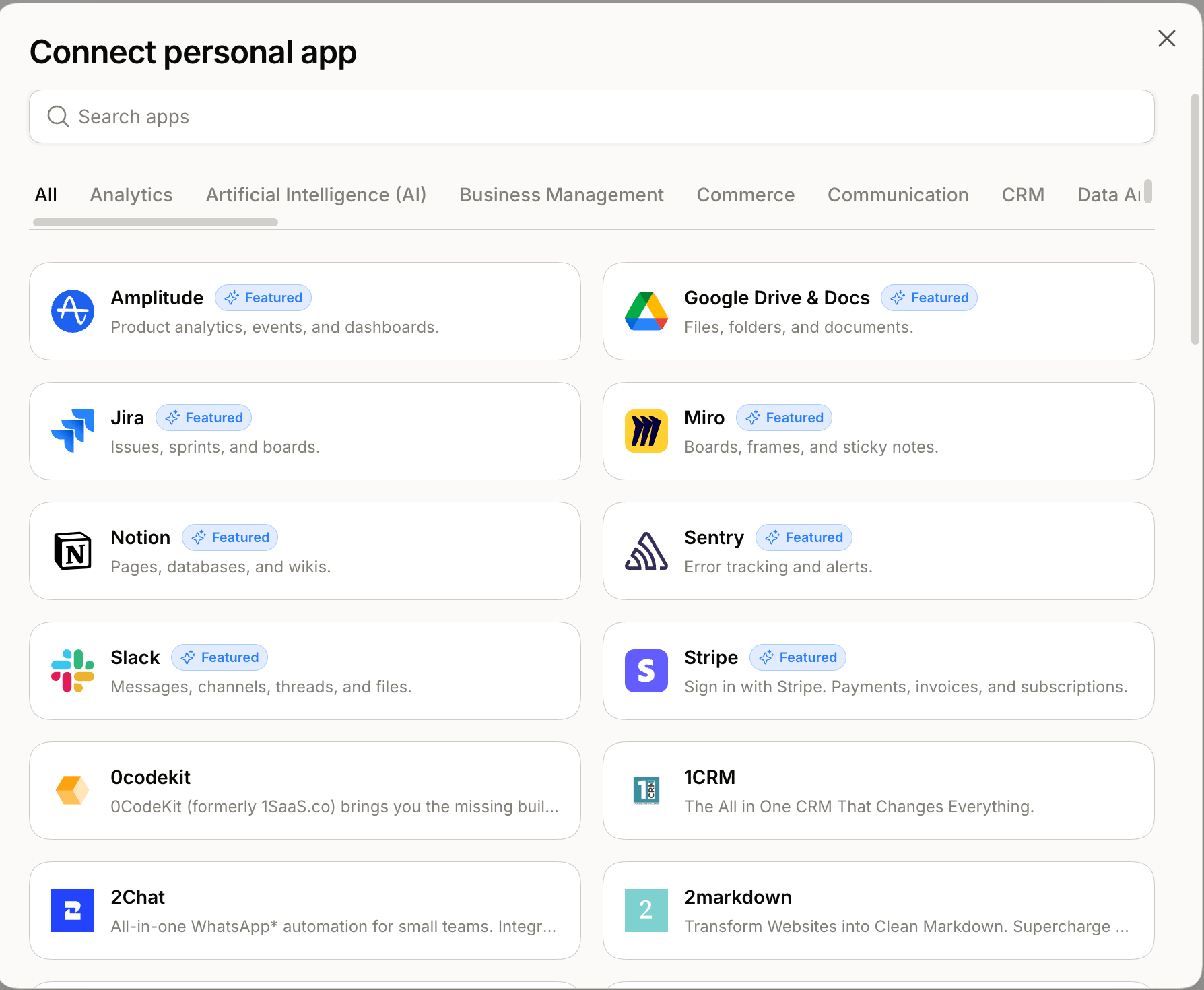
Connections are the external tools and apps your agents read from. Hops integrates with **2,000+ apps** across productivity, developer tools, CRM, communication, analytics, design, databases, and more, powered by the Pipedream integration catalog. The more relevant tools you connect, the less your team re-explains the same context every session.
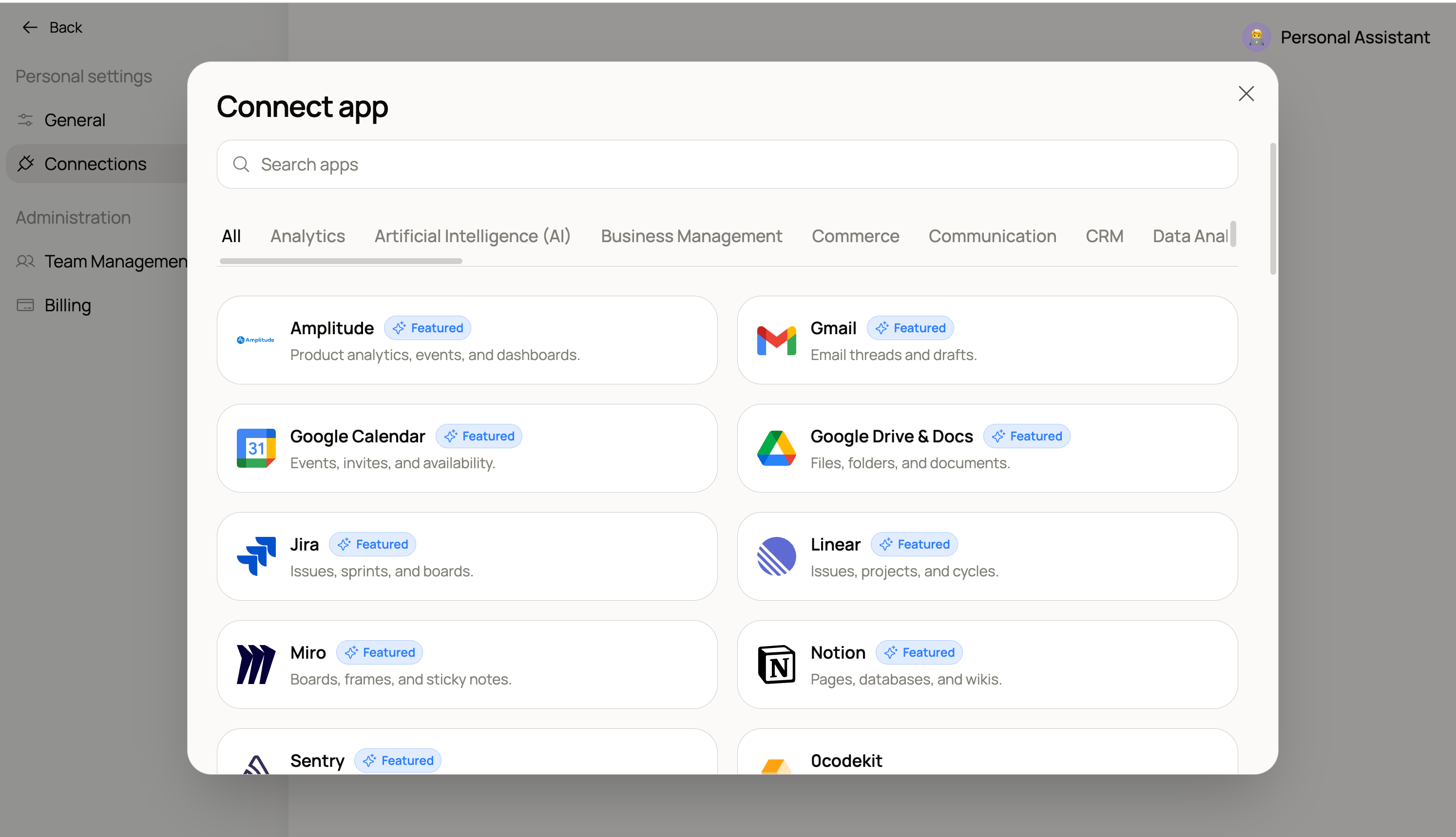 Search or filter 2,000+ apps you can connect to Hops.
## Where connections live
Tools in Hops can be scoped in **two places**, depending on which agent should be able to use them:
Managed from **Settings → Connections**. These power the **default `@Hops` agent** and your **Personal Assistant** — so anything you connect here your default and personal agents can use right away.
Configured **per custom agent** from that agent's settings. Each custom agent gets its own scoped set of tools — great for keeping a sales agent's stack separate from a support agent's.
Search or filter 2,000+ apps you can connect to Hops.
## Where connections live
Tools in Hops can be scoped in **two places**, depending on which agent should be able to use them:
Managed from **Settings → Connections**. These power the **default `@Hops` agent** and your **Personal Assistant** — so anything you connect here your default and personal agents can use right away.
Configured **per custom agent** from that agent's settings. Each custom agent gets its own scoped set of tools — great for keeping a sales agent's stack separate from a support agent's.
 ## Manage your connections
Connections are managed from **Settings → Connections**. From there you can:
* **View status** — active or needs reauthorization, and when Hops last synced.
* **Edit** — turn specific tools within a connection on or off to fine-tune what an agent can use.
* **Reauthorize** — reconnect when a token has expired or you've changed a password.
* **Revoke** — click a connection and select **Disconnect** to remove it from all agents. Past artifacts and threads that referenced it aren't deleted; only future reads are blocked.
Disconnecting a tool means your agents will no longer have access to it. They'll tell you when they can't find something that used to be available.
## Security
Your data stays yours. Hops reads from connected tools with the same permissions your account has — it doesn't get elevated access. You can review and revoke any connection at any time.
## Get started
* [Connect an app](/docs/connections/connect-an-app)
* [Browse the catalog](/docs/connections/catalog)
## Manage your connections
Connections are managed from **Settings → Connections**. From there you can:
* **View status** — active or needs reauthorization, and when Hops last synced.
* **Edit** — turn specific tools within a connection on or off to fine-tune what an agent can use.
* **Reauthorize** — reconnect when a token has expired or you've changed a password.
* **Revoke** — click a connection and select **Disconnect** to remove it from all agents. Past artifacts and threads that referenced it aren't deleted; only future reads are blocked.
Disconnecting a tool means your agents will no longer have access to it. They'll tell you when they can't find something that used to be available.
## Security
Your data stays yours. Hops reads from connected tools with the same permissions your account has — it doesn't get elevated access. You can review and revoke any connection at any time.
## Get started
* [Connect an app](/docs/connections/connect-an-app)
* [Browse the catalog](/docs/connections/catalog)