> ## Documentation Index
> Fetch the complete documentation index at: https://hopsdocs.mintlify.site/llms.txt
> Use this file to discover all available pages before exploring further.
# Tables
> Structured, spreadsheet-like data your team and Hops can read and update together.
Tables give your team a lightweight database inside Hops. Use them to track candidates, log research, brainstorm messaging, or keep a CRM-style pipeline — anything that fits into rows and columns.
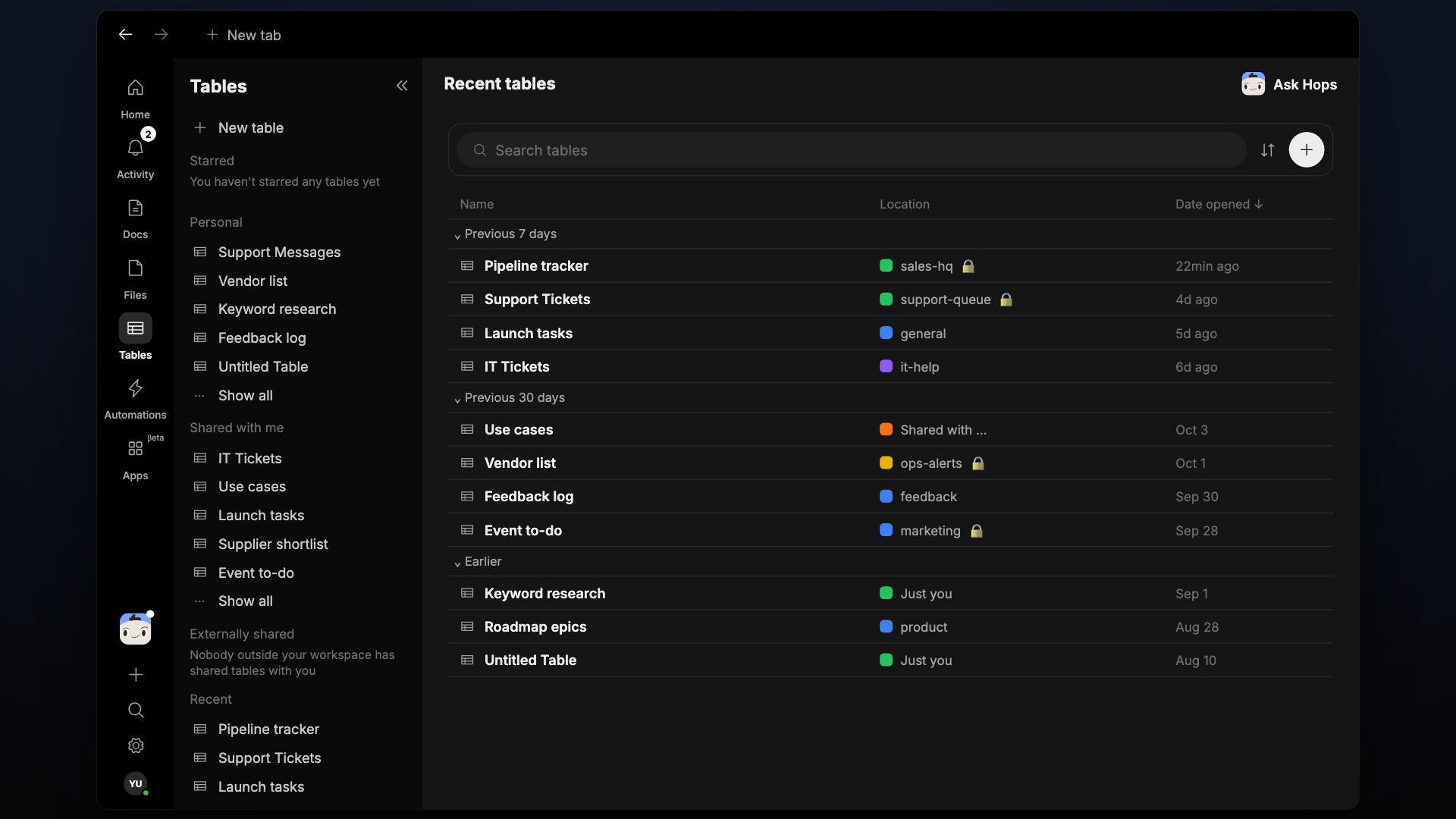 Like docs, tables live inside a Space, so Hops can read and update them as part of that Space's context.
Open **Tables** from the left sidebar to browse every table you have access to.
## The Tables view
Tables are grouped in five sections:
* **Starred** — tables you've marked as favorites.
* **Personal** — tables in your personal space.
* **Shared with me** — tables someone else has shared with you.
* **Externally shared** — tables shared with people outside your workspace.
* **Recent** — tables you've opened most recently.
Each row shows the table's **Name**, its **Location**, and the **Date opened**.
## Create a table
* Click **New table** at the top of the Tables page.
* Or click the global **+** button in the left sidebar and choose **Table**.
New tables start empty. Add columns, then rows.
## Working with a table
A table opens in **Grid view**, with column headers across the top and one row per record.
| Control | What it does |
| - | - |
| **Grid view** | Switch between saved views of the same data |
| Search | Find a row by any cell value |
| Filter | Show only rows that match a condition |
| Sort | Order rows by one or more columns |
| Settings | Configure the current view |
| **New** | Add a row (or a new view, from the dropdown) |
| **+ New entry** | Add a row at the bottom of the list |
Click any cell to edit inline. Click a row to open its full record.
## Generate a table with Hops
Hops can create a fully-formed table for you. Ask in chat and the table is built with columns, populated with rows, and saved into the current Space.
```
@Hops turn this competitor list into a table with pricing, target market, and notes
@Hops build a tracker of the last 20 job postings for AI PMs
@Hops create a pipeline table from the leads I mentioned yesterday
```
The new table lands in the Space's **Tables** tab immediately — sort, filter, or hand it back to Hops for enrichment.
## Column types
Pick the right type per column so filters, sorts, and Hops updates behave predictably.
| Type | Best for |
| - | - |
| **Text** | Names, short notes, free-form strings |
| **Number** | Counts, prices, scores |
| **Date** | Deadlines, timestamps, close dates |
| **Select** | Fixed set of options (status, priority, owner) |
| **Multi-select** | Tags, categories, multiple owners |
| **Checkbox** | Boolean state (done, verified, in-scope) |
| **URL** | Links to external pages or files |
| **Person** | Reference a workspace member |
Click a column header to rename, change type, or reorder.
## Views
Save different perspectives of the same data as **views**. Every view has its own filter, sort, and column visibility.
* **Grid** — the default spreadsheet layout.
* **Filtered views** — e.g. "Open deals only," "This quarter," "My rows."
* **Grouped views** — collapse rows by a Select column like status or owner.
Switch views from the view dropdown at the top-left of the table.
## Edit alongside Hops
Ask Hops to work directly on the table:
* **Enrich** rows — "fill in the `Industry` column for every row from the company's website."
* **Summarize** — "give me a one-paragraph read on this pipeline."
* **Add rows** from a chat message, an email, or a doc.
* **Reconcile** duplicates or normalize inconsistent values.
Updates from Hops appear as tracked changes you can accept or refine.
## Import and export
* **Import CSV** from the table's `...` menu to bring in existing data.
* **Export CSV** to send outside Hops.
* **Copy link** to share the table with anyone with access to the Space.
* **Duplicate** into another Space to reuse as a template.
## Tables as Hops context
Ask Hops in the Space to fill in missing values, summarize the table, or add a row from a chat message. Hops can read and update any table in a Space it's a member of.
Start small. It's easier to teach Hops about a five-column tracker than a fifty-column one.
## Related
* [Docs](/docs/artifacts/docs)
* [Files](/docs/artifacts/files)
## Related topics
- [Contract renewals](/teams/legal/use-cases/contract-renewals.md)
- [Market sizing](/teams/professional-services/use-cases/market-sizing.md)
- [Financial model check](/teams/professional-services/use-cases/financial-model.md)
- [Shared follow-ups](/teams/sales/use-cases/shared-follow-ups.md)
- [Chase missing submissions](/teams/sales/use-cases/chase-submissions.md)
This documentation is built and hosted on [Mintlify](https://mintlify.com), a developer documentation platform.
Like docs, tables live inside a Space, so Hops can read and update them as part of that Space's context.
Open **Tables** from the left sidebar to browse every table you have access to.
## The Tables view
Tables are grouped in five sections:
* **Starred** — tables you've marked as favorites.
* **Personal** — tables in your personal space.
* **Shared with me** — tables someone else has shared with you.
* **Externally shared** — tables shared with people outside your workspace.
* **Recent** — tables you've opened most recently.
Each row shows the table's **Name**, its **Location**, and the **Date opened**.
## Create a table
* Click **New table** at the top of the Tables page.
* Or click the global **+** button in the left sidebar and choose **Table**.
New tables start empty. Add columns, then rows.
## Working with a table
A table opens in **Grid view**, with column headers across the top and one row per record.
| Control | What it does |
| - | - |
| **Grid view** | Switch between saved views of the same data |
| Search | Find a row by any cell value |
| Filter | Show only rows that match a condition |
| Sort | Order rows by one or more columns |
| Settings | Configure the current view |
| **New** | Add a row (or a new view, from the dropdown) |
| **+ New entry** | Add a row at the bottom of the list |
Click any cell to edit inline. Click a row to open its full record.
## Generate a table with Hops
Hops can create a fully-formed table for you. Ask in chat and the table is built with columns, populated with rows, and saved into the current Space.
```
@Hops turn this competitor list into a table with pricing, target market, and notes
@Hops build a tracker of the last 20 job postings for AI PMs
@Hops create a pipeline table from the leads I mentioned yesterday
```
The new table lands in the Space's **Tables** tab immediately — sort, filter, or hand it back to Hops for enrichment.
## Column types
Pick the right type per column so filters, sorts, and Hops updates behave predictably.
| Type | Best for |
| - | - |
| **Text** | Names, short notes, free-form strings |
| **Number** | Counts, prices, scores |
| **Date** | Deadlines, timestamps, close dates |
| **Select** | Fixed set of options (status, priority, owner) |
| **Multi-select** | Tags, categories, multiple owners |
| **Checkbox** | Boolean state (done, verified, in-scope) |
| **URL** | Links to external pages or files |
| **Person** | Reference a workspace member |
Click a column header to rename, change type, or reorder.
## Views
Save different perspectives of the same data as **views**. Every view has its own filter, sort, and column visibility.
* **Grid** — the default spreadsheet layout.
* **Filtered views** — e.g. "Open deals only," "This quarter," "My rows."
* **Grouped views** — collapse rows by a Select column like status or owner.
Switch views from the view dropdown at the top-left of the table.
## Edit alongside Hops
Ask Hops to work directly on the table:
* **Enrich** rows — "fill in the `Industry` column for every row from the company's website."
* **Summarize** — "give me a one-paragraph read on this pipeline."
* **Add rows** from a chat message, an email, or a doc.
* **Reconcile** duplicates or normalize inconsistent values.
Updates from Hops appear as tracked changes you can accept or refine.
## Import and export
* **Import CSV** from the table's `...` menu to bring in existing data.
* **Export CSV** to send outside Hops.
* **Copy link** to share the table with anyone with access to the Space.
* **Duplicate** into another Space to reuse as a template.
## Tables as Hops context
Ask Hops in the Space to fill in missing values, summarize the table, or add a row from a chat message. Hops can read and update any table in a Space it's a member of.
Start small. It's easier to teach Hops about a five-column tracker than a fifty-column one.
## Related
* [Docs](/docs/artifacts/docs)
* [Files](/docs/artifacts/files)
## Related topics
- [Contract renewals](/teams/legal/use-cases/contract-renewals.md)
- [Market sizing](/teams/professional-services/use-cases/market-sizing.md)
- [Financial model check](/teams/professional-services/use-cases/financial-model.md)
- [Shared follow-ups](/teams/sales/use-cases/shared-follow-ups.md)
- [Chase missing submissions](/teams/sales/use-cases/chase-submissions.md)
This documentation is built and hosted on [Mintlify](https://mintlify.com), a developer documentation platform.