> ## Documentation Index
> Fetch the complete documentation index at: https://hopsdocs.mintlify.site/llms.txt
> Use this file to discover all available pages before exploring further.
# Custom agents
> Build an agent tailored to your team's workflow, with the instructions and connections you define.
Custom agents are AI agents your team builds for a specific role: marketing, sales, finance, legal, support — anything with a recurring workflow.
 ## What you configure
| Setting | What it does |
| ------------------------- | ------------------------------------------------------------ |
| **Name** | How your team tags it (`@[name]`) |
| **Agent managers** | Who can edit the agent's settings |
| **Who can add to Spaces** | Which members can bring this agent into a Space |
| **Instructions** | Standing guidance that shapes tone, priorities, and behavior |
| **Connections** | Per-agent access to specific apps (from 2,000+ integrations) |
## Create a custom agent
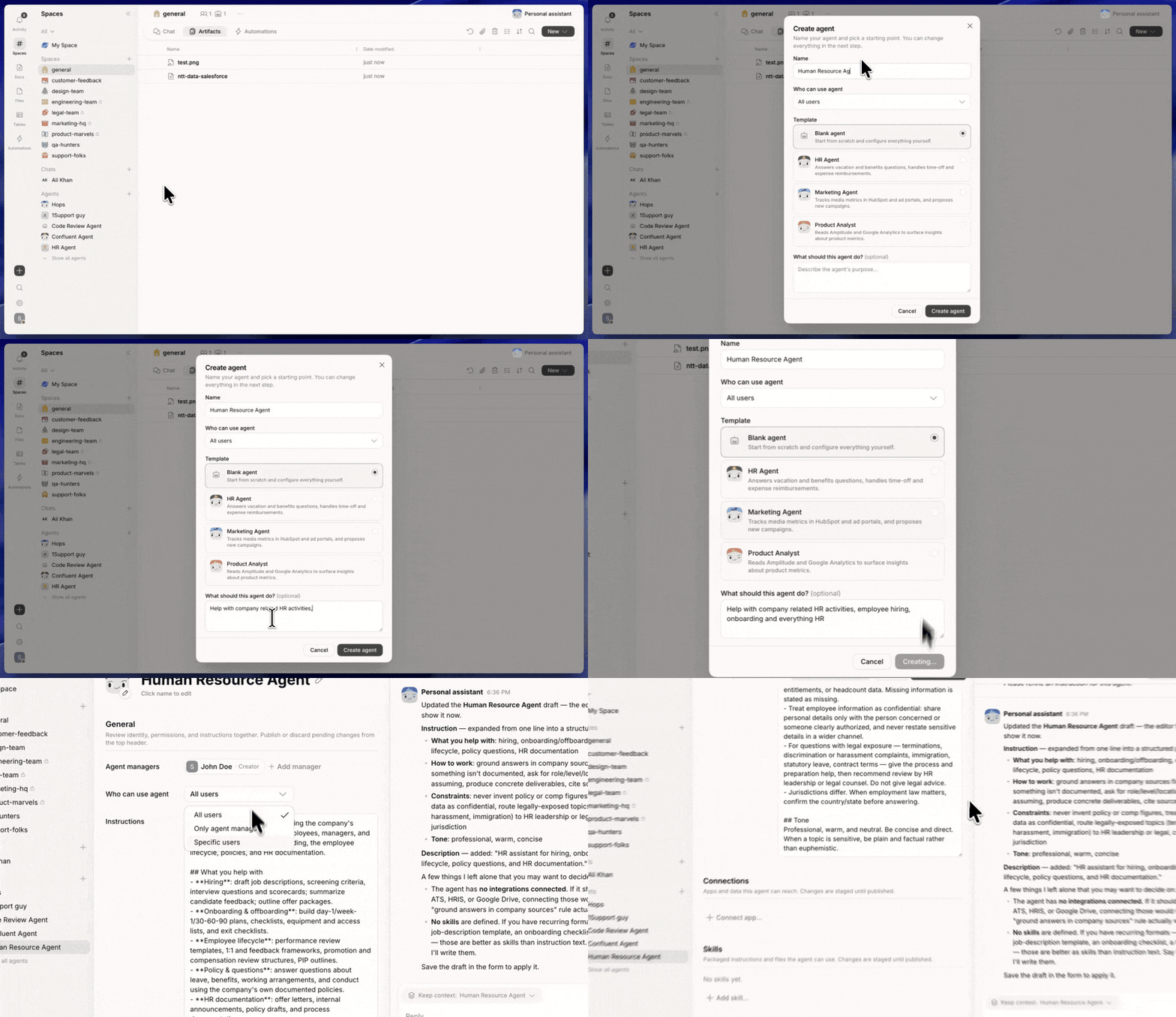
Click **+** at the bottom of the left sidebar and choose to create a new agent.
Give it a name your team will recognize. Pick a template (Blank, HR Agent, Marketing Agent, etc.) or describe what it should do.
Define the agent's role, tone, and how it should respond. Use **Refine** to tighten wording. See the guidance below.
You're added as the first manager. Add other managers and control who can bring this agent into Spaces.
Under **Connections**, click **Connect app** to give the agent access to specific tools.
Click **Publish changes**. Open a Space where it's available and tag it with `@[name]`.
## Add a custom agent to a Space
A custom agent isn't automatically available in every Space — you invite it into the Spaces where it should work.
## What you configure
| Setting | What it does |
| ------------------------- | ------------------------------------------------------------ |
| **Name** | How your team tags it (`@[name]`) |
| **Agent managers** | Who can edit the agent's settings |
| **Who can add to Spaces** | Which members can bring this agent into a Space |
| **Instructions** | Standing guidance that shapes tone, priorities, and behavior |
| **Connections** | Per-agent access to specific apps (from 2,000+ integrations) |
## Create a custom agent
Click **+** at the bottom of the left sidebar and choose to create a new agent.
Give it a name your team will recognize. Pick a template (Blank, HR Agent, Marketing Agent, etc.) or describe what it should do.
Define the agent's role, tone, and how it should respond. Use **Refine** to tighten wording. See the guidance below.
You're added as the first manager. Add other managers and control who can bring this agent into Spaces.
Under **Connections**, click **Connect app** to give the agent access to specific tools.
Click **Publish changes**. Open a Space where it's available and tag it with `@[name]`.
## Add a custom agent to a Space
A custom agent isn't automatically available in every Space — you invite it into the Spaces where it should work.
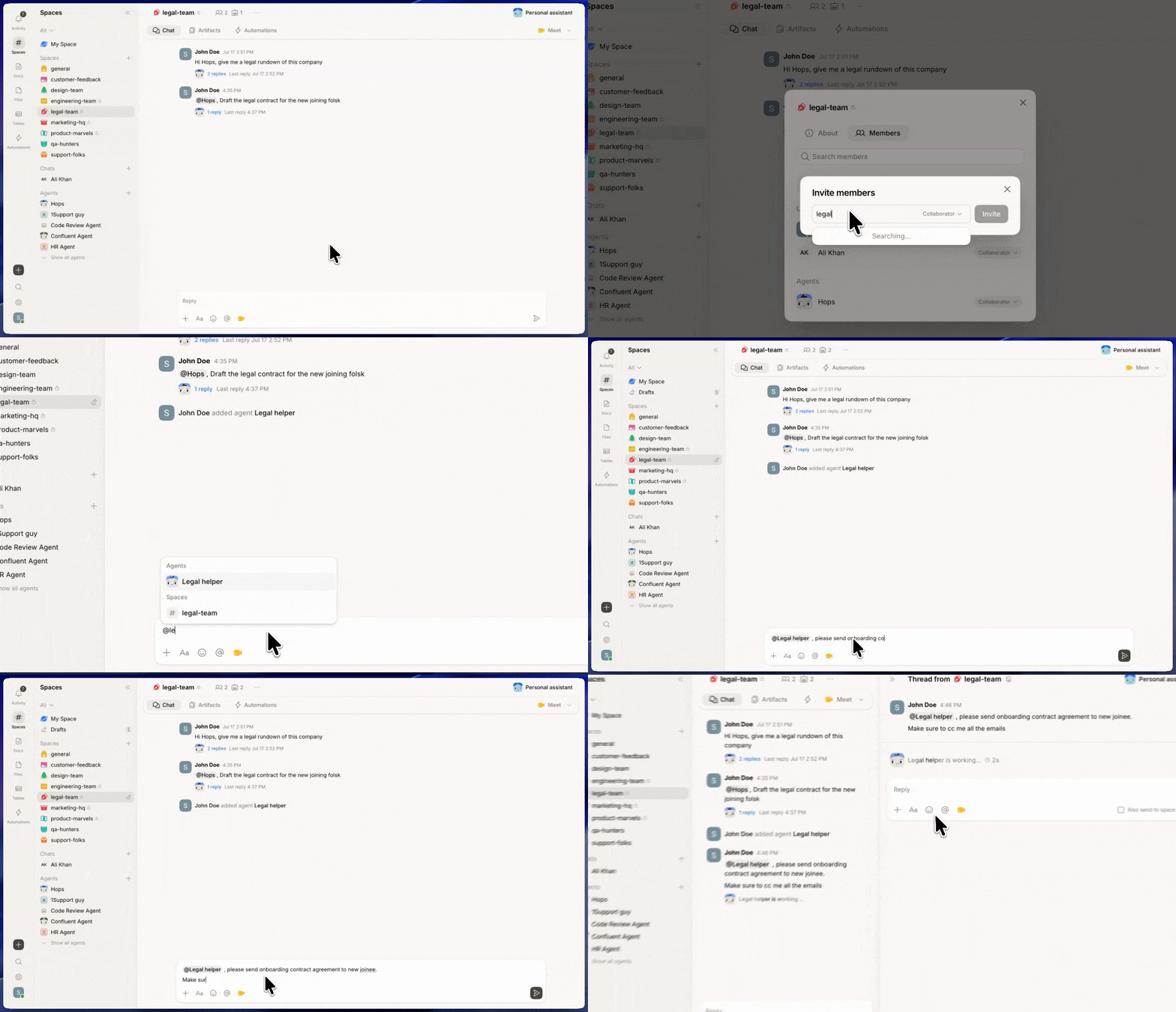 Inside your Space, open the **Agents** tab in the right rail.
Click **Add agent** and pick the custom agent you built (or create a new one on the fly).
In the Space's chat, tag the agent with `@name`. It responds using its own instructions and connections, drawing on the Space's shared context.
Only add the agents a Space actually needs. Fewer, more specialized agents give sharper, less noisy responses.
See [Spaces overview](/docs/spaces/overview) for more on how agents work inside a Space.
## Writing good instructions
Instructions are capped at 2,000 characters. Cover:
* **Role** — what this agent is responsible for
* **Tone** — formal, direct, casual, technical
* **Format preferences** — bullets, prose, short or long
* **What to prioritize** — which tools, decisions, or context to lean on
* **What to avoid** — topics outside scope, assumptions it shouldn't make
Instructions can be **global** (everywhere) or **Space-specific** (override the global set in that Space).
**Example:**
```text theme={null}
You support the Acme Corp account's marketing work. Always reference the Acme brand guide in the Space Context document before drafting copy. Write in a professional but approachable tone. Keep deliverables short and action-oriented. Flag anything that contradicts the approved messaging framework.
```
Write instructions as if you're onboarding a new team member to a specific role. If you find yourself writing more than 2,000 characters, move standing context into the [Space Context document](/docs/spaces/space-context) instead.
## Edit or delete an agent
Any agent manager can open the agent, click the **...** menu, and choose **Edit agent** to change its settings. Under **Danger zone**, an agent can be permanently deleted — this removes it from every Space and can't be undone.
## Related
* [Space Context document](/docs/spaces/space-context)
* [Connections](/docs/connections/overview)
Inside your Space, open the **Agents** tab in the right rail.
Click **Add agent** and pick the custom agent you built (or create a new one on the fly).
In the Space's chat, tag the agent with `@name`. It responds using its own instructions and connections, drawing on the Space's shared context.
Only add the agents a Space actually needs. Fewer, more specialized agents give sharper, less noisy responses.
See [Spaces overview](/docs/spaces/overview) for more on how agents work inside a Space.
## Writing good instructions
Instructions are capped at 2,000 characters. Cover:
* **Role** — what this agent is responsible for
* **Tone** — formal, direct, casual, technical
* **Format preferences** — bullets, prose, short or long
* **What to prioritize** — which tools, decisions, or context to lean on
* **What to avoid** — topics outside scope, assumptions it shouldn't make
Instructions can be **global** (everywhere) or **Space-specific** (override the global set in that Space).
**Example:**
```text theme={null}
You support the Acme Corp account's marketing work. Always reference the Acme brand guide in the Space Context document before drafting copy. Write in a professional but approachable tone. Keep deliverables short and action-oriented. Flag anything that contradicts the approved messaging framework.
```
Write instructions as if you're onboarding a new team member to a specific role. If you find yourself writing more than 2,000 characters, move standing context into the [Space Context document](/docs/spaces/space-context) instead.
## Edit or delete an agent
Any agent manager can open the agent, click the **...** menu, and choose **Edit agent** to change its settings. Under **Danger zone**, an agent can be permanently deleted — this removes it from every Space and can't be undone.
## Related
* [Space Context document](/docs/spaces/space-context)
* [Connections](/docs/connections/overview)